

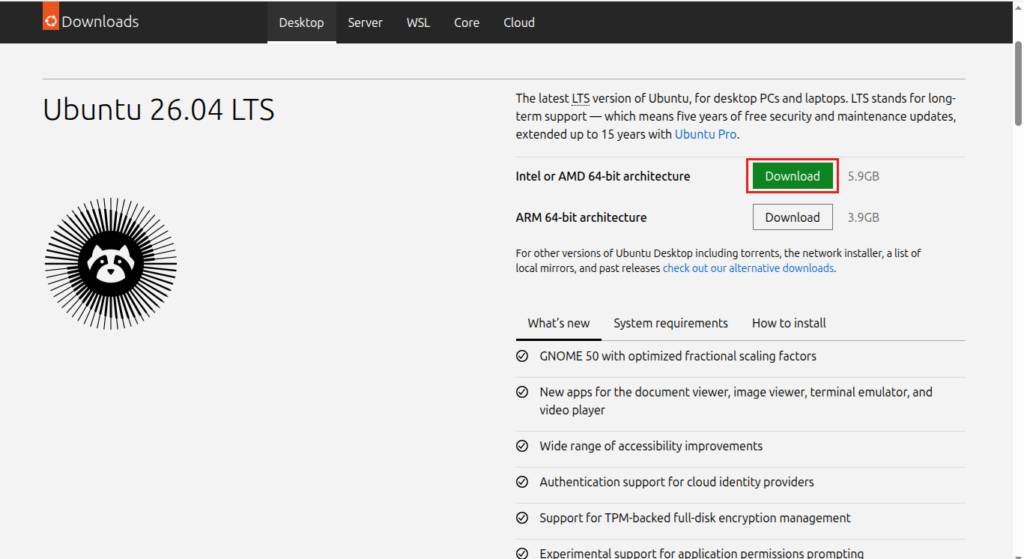

Every two years, Canonical ships a new LTS version of Ubuntu. If you are like me who does not like short term releases, such as Ubuntu 25.04, then you are going to enjoy this guide. LTS versions of Ubuntu offer 5 years of support, which is extended up to 10 years with Ubuntu pro. On April 23rd of this year, they shipped brand new Ubuntu 26.04 LTS which is codenamed Resolute Raccoon. Raccoon? Wow, that’s kinda cool.
Anyway, I am a Ubuntu user and every 2 years I like to back it all up(my data) and install the new version. Now yes, you can upgrade from Ubuntu 24.04 LTS but that’s not available at the time of writing this. It should be available after the release of Ubuntu 26.04.1. Even if it was available, I do not like to upgrade from within my OS because the LTS to LTS upgrade brings system clutter of old config files, unused packages, third party repos etc.. I am not saying that upgrading is bad, it’s just my personal preference. I like to start fresh!
So backup everything you have(your data) on an external physical drive or cloud or your home NAS if you are a homelab enthusiast.
How to Install Ubuntu 26.04 LTS on Bare Metal
Step 1: Download Ubuntu 26.04 LTS
Download the Ubuntu 26.04 LTS ISO file for your machine’s relevant architecture. I’ll choose AMD as I have a Dell OptiPlex.
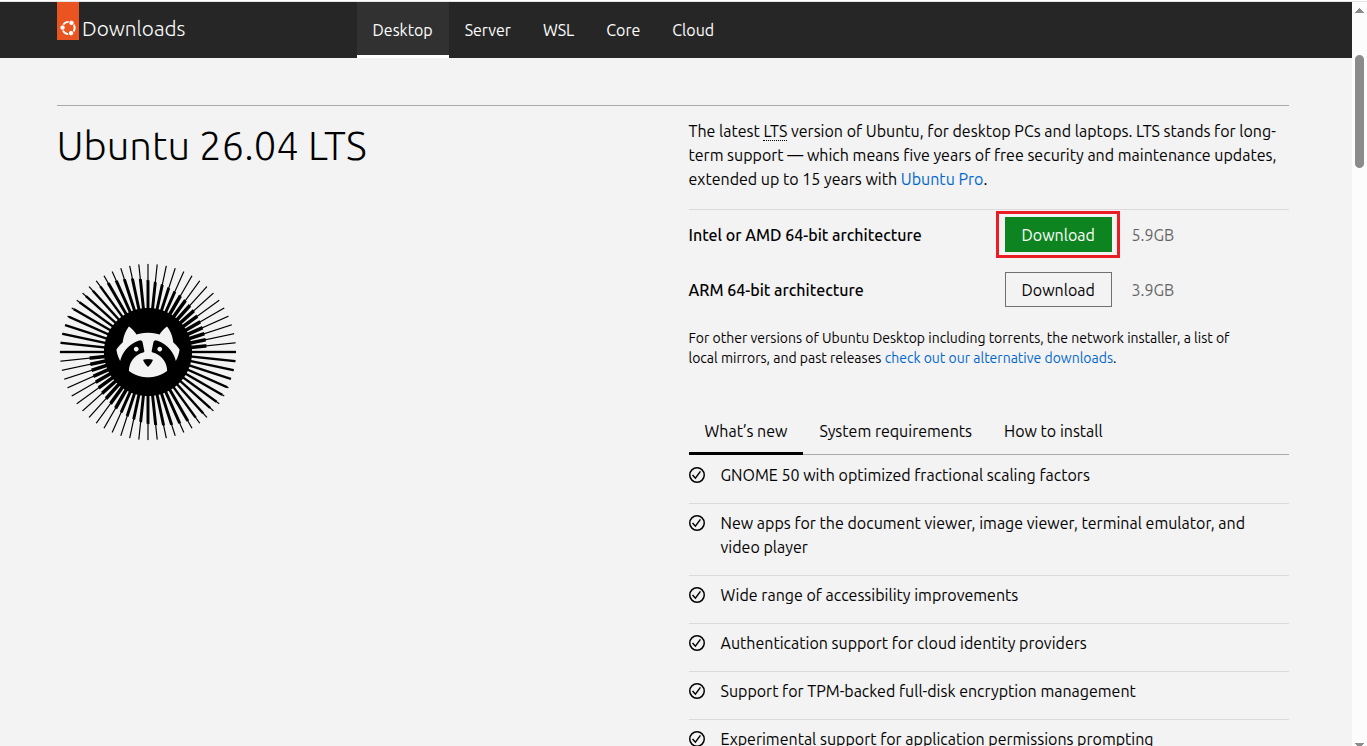
This will likely be downloaded in the Downloads directory.
Step 2: Make USB Bootable
Go to your terminal and run lsblk command to list down all your storage devices on your hardware:
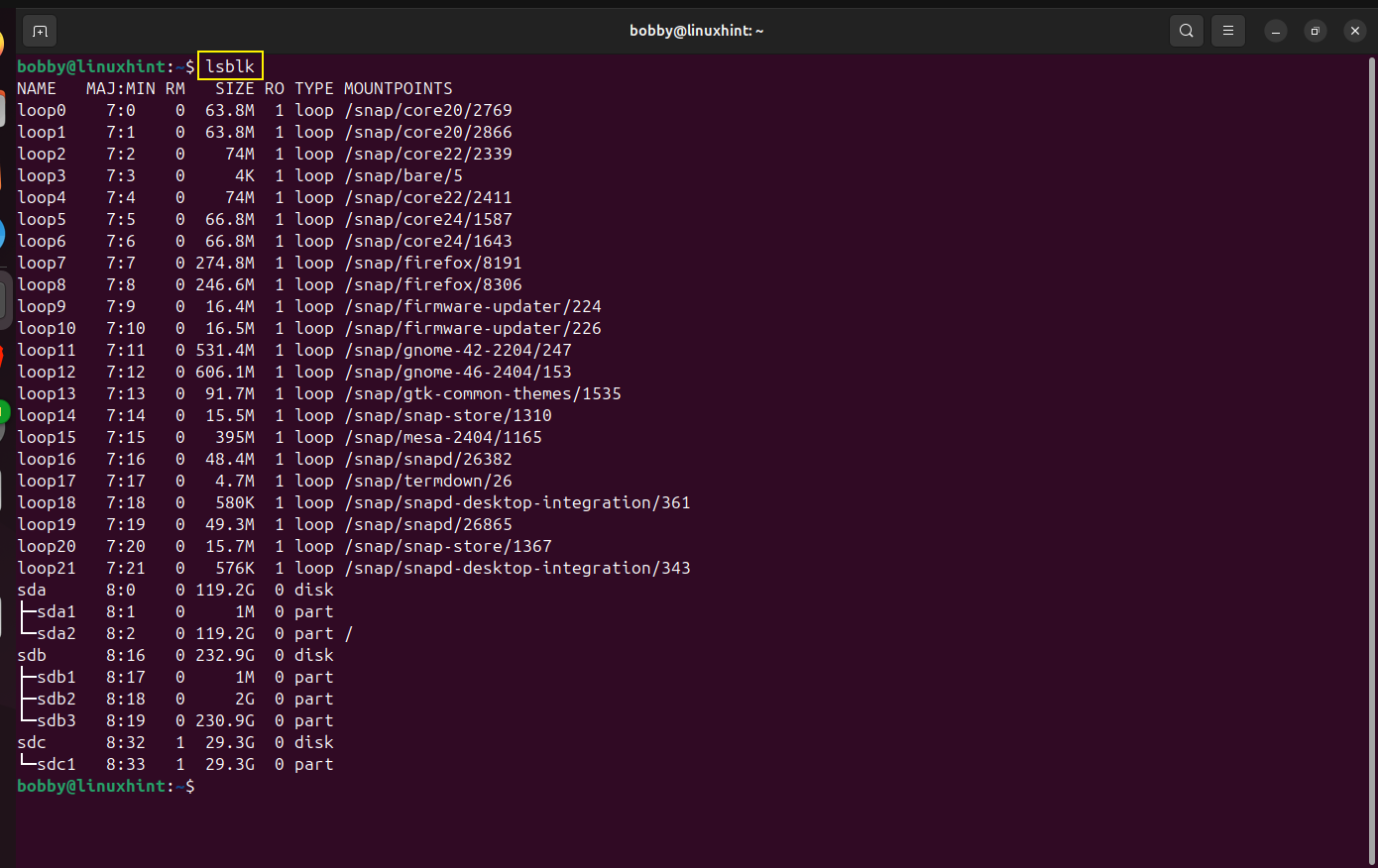
sdc is our USB, it has only 1 partition of its full size i.e. sdc1. We needed to know this because we are going to need this later when we use dd command.
Now, we will unmount the USB just in case it was mounted, even if its not just run it just for being on the safe side:
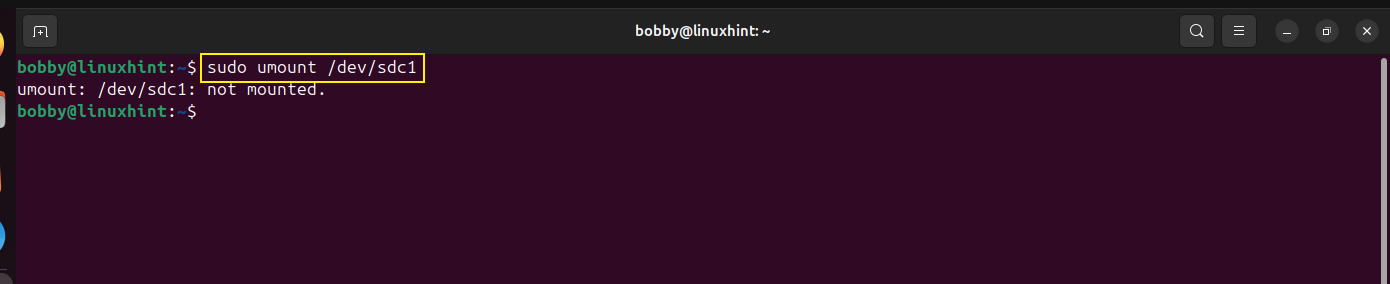
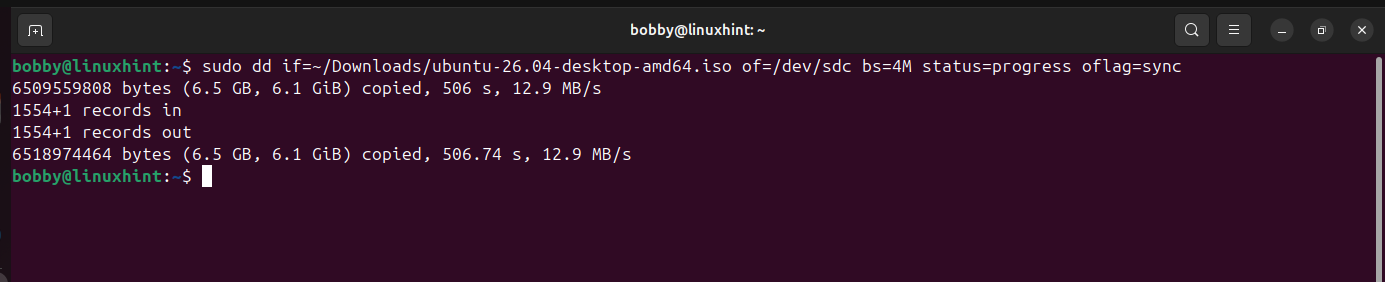
Make sure your ISO file name is correct and the destination folder is chosen correctly, you can simply edit the command below as per your ISO filename and destination folder:
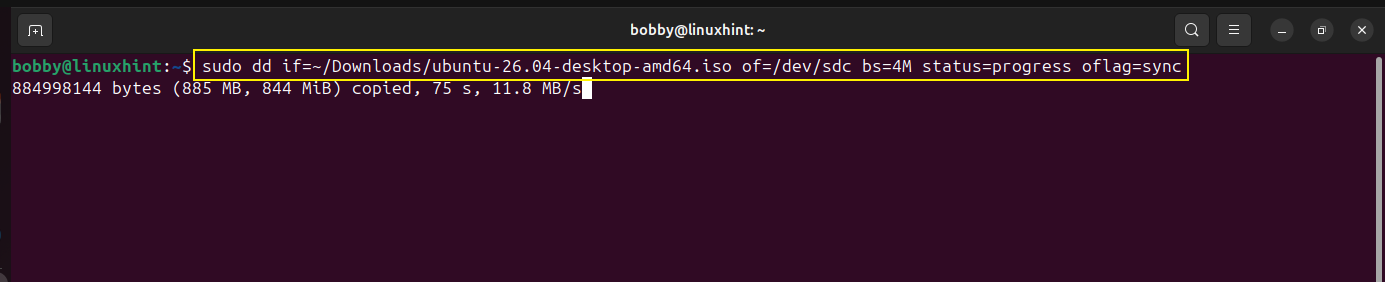
Our USB is now bootable.
Step 3: Backup Data
This is the most crucial step, backup your data in an external hard drive or a NAS(if you have one and a homelab enthusiast). If you want to learn how to build a NAS, read this article. If you’re not a homelab owner, then you can also upload your data on a cloud drive such as Google Drive but you must ensure that your data is encrypted if you are a true privacy geek. For that you can use rclone in your terminal but if you have a hard time memorizing commands then you can install Rclone UI and encrypt your files and backups and upload them on Google Drive.
Step 4: Insert Bootable USB and Restart
Insert bootable USB in your bare metal and restart your system. You will see a start screen.
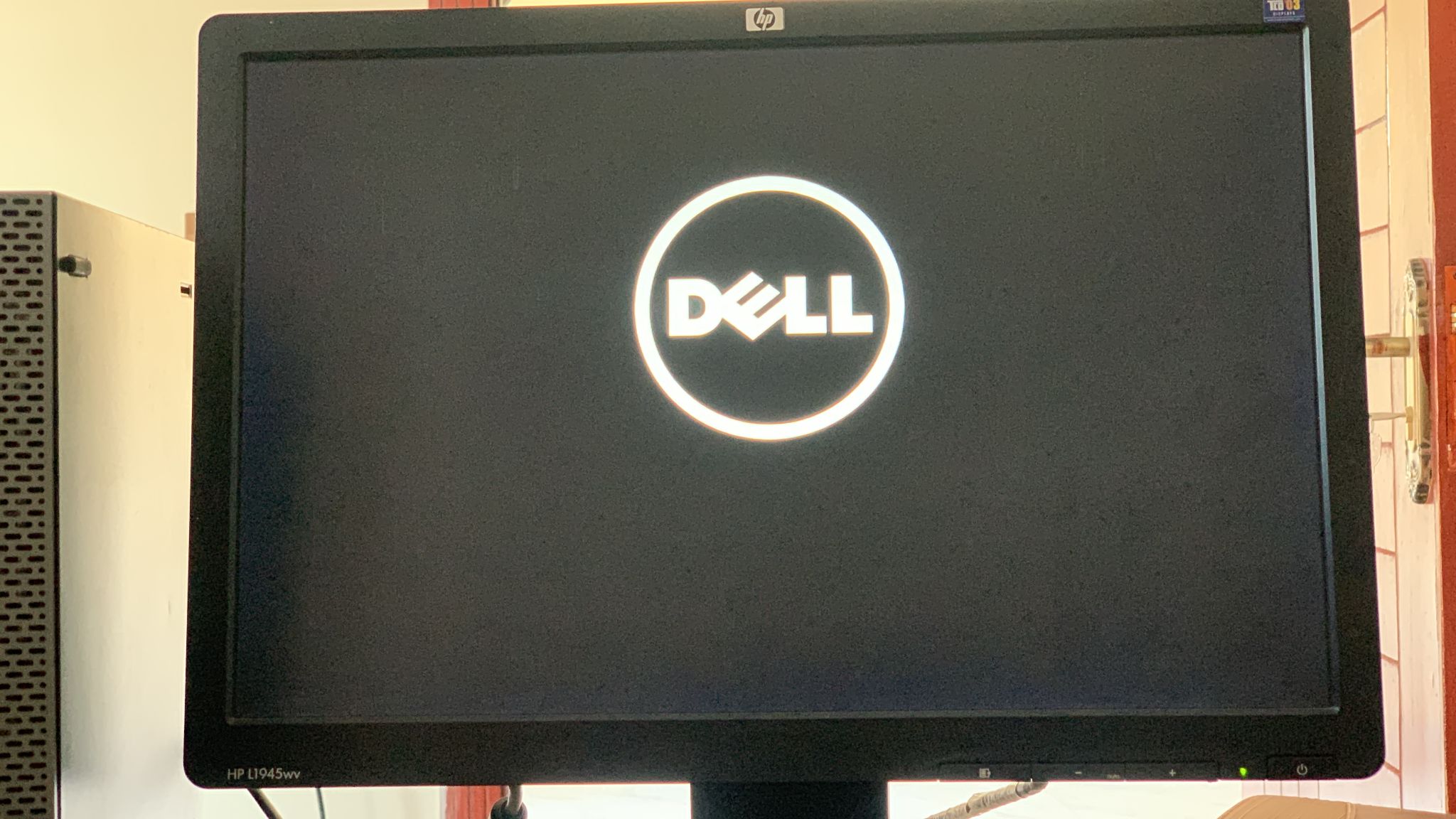
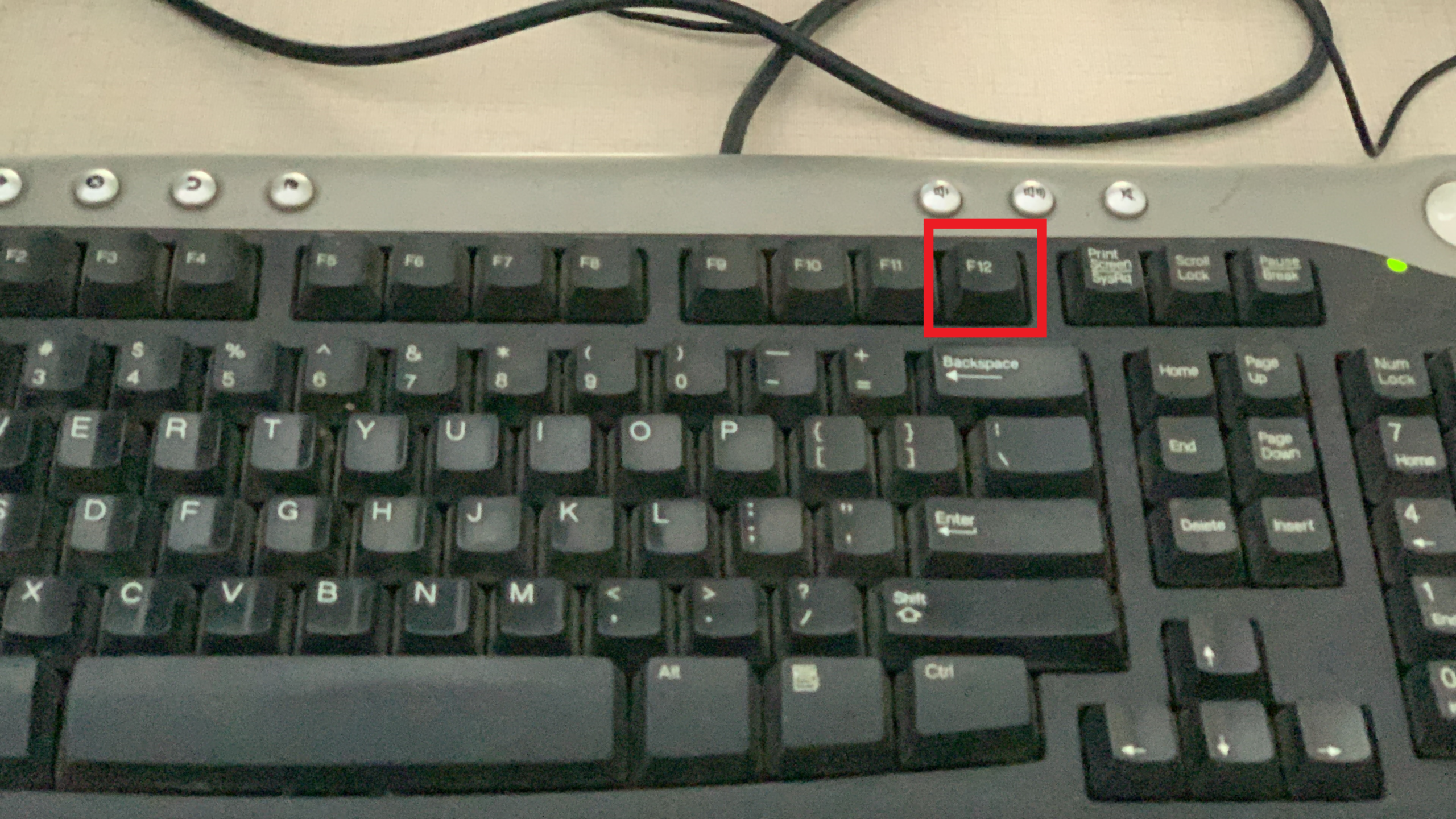
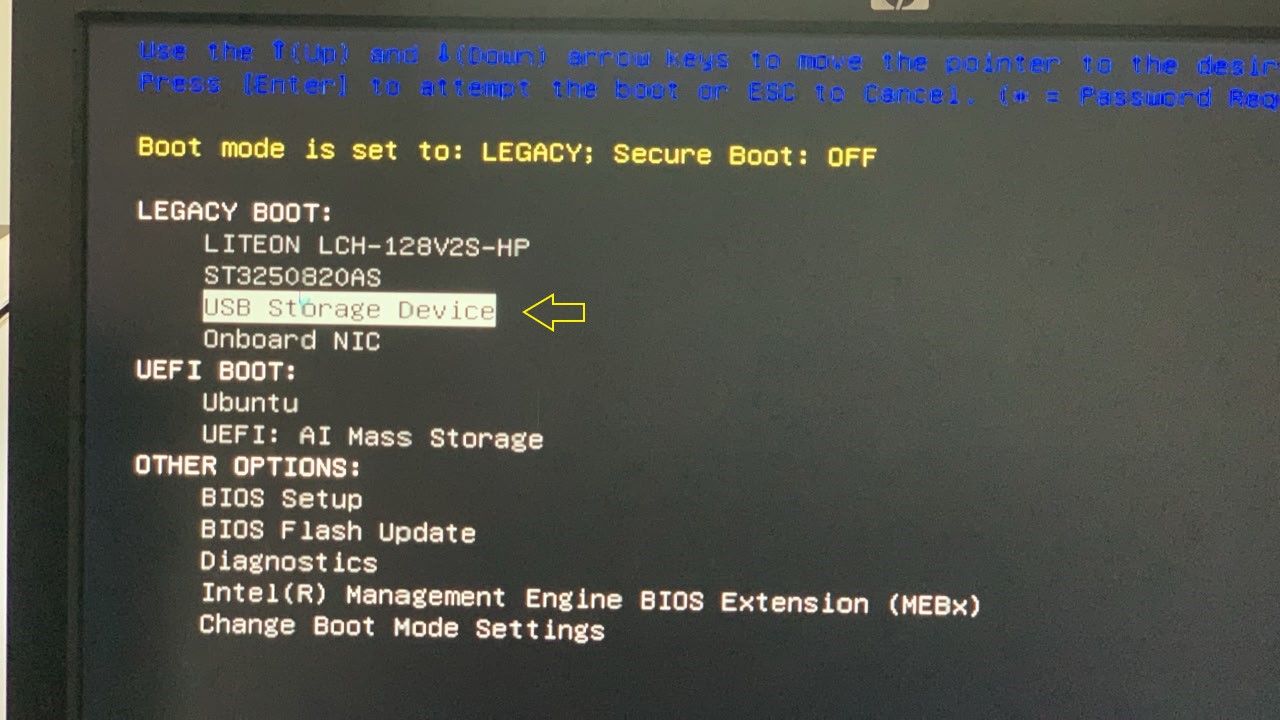
Depending upon your system you’d have to press F2, F10 or F12 at the startup. My system is dell so I’ll press F12.
Step 5: Begin Installation of Ubuntu 26.04 LTS
In the boot menu, select USB Storage Device and hit enter key.
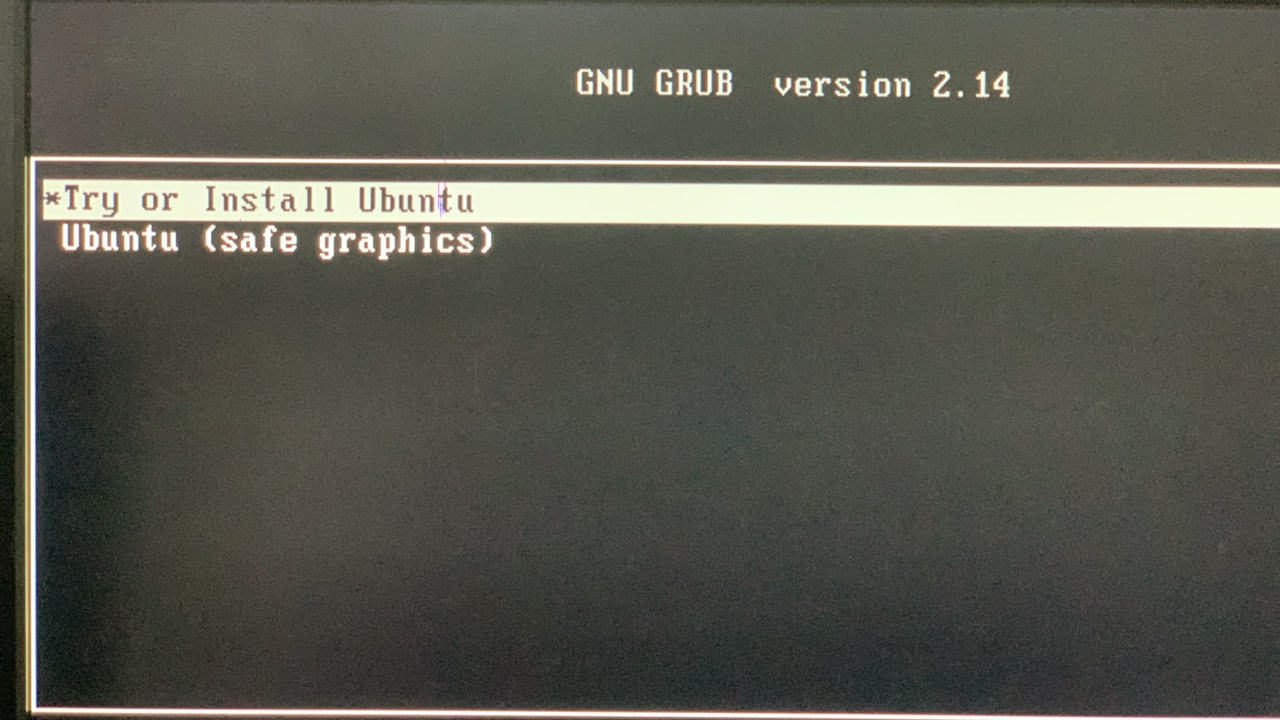
Select the option Try or Install Ubuntu:
You will see this screen:
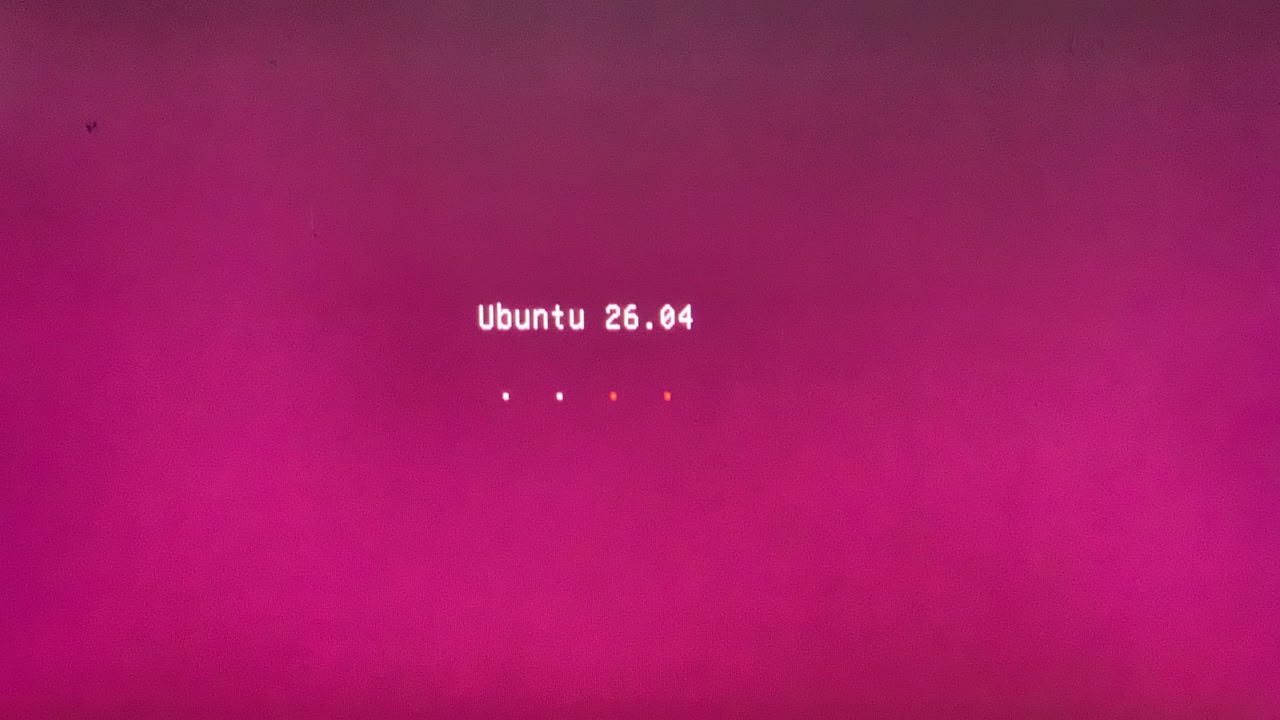
Next you will see Preparing Ubuntu screen:
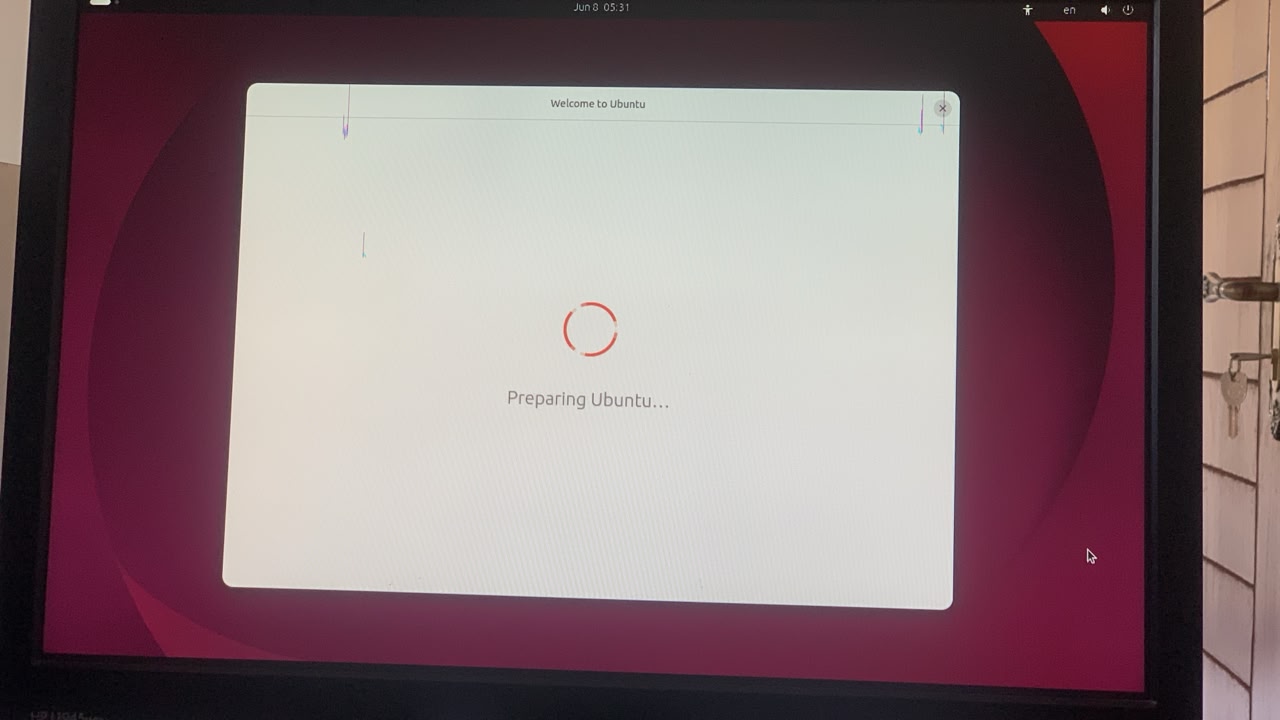
Select your language:
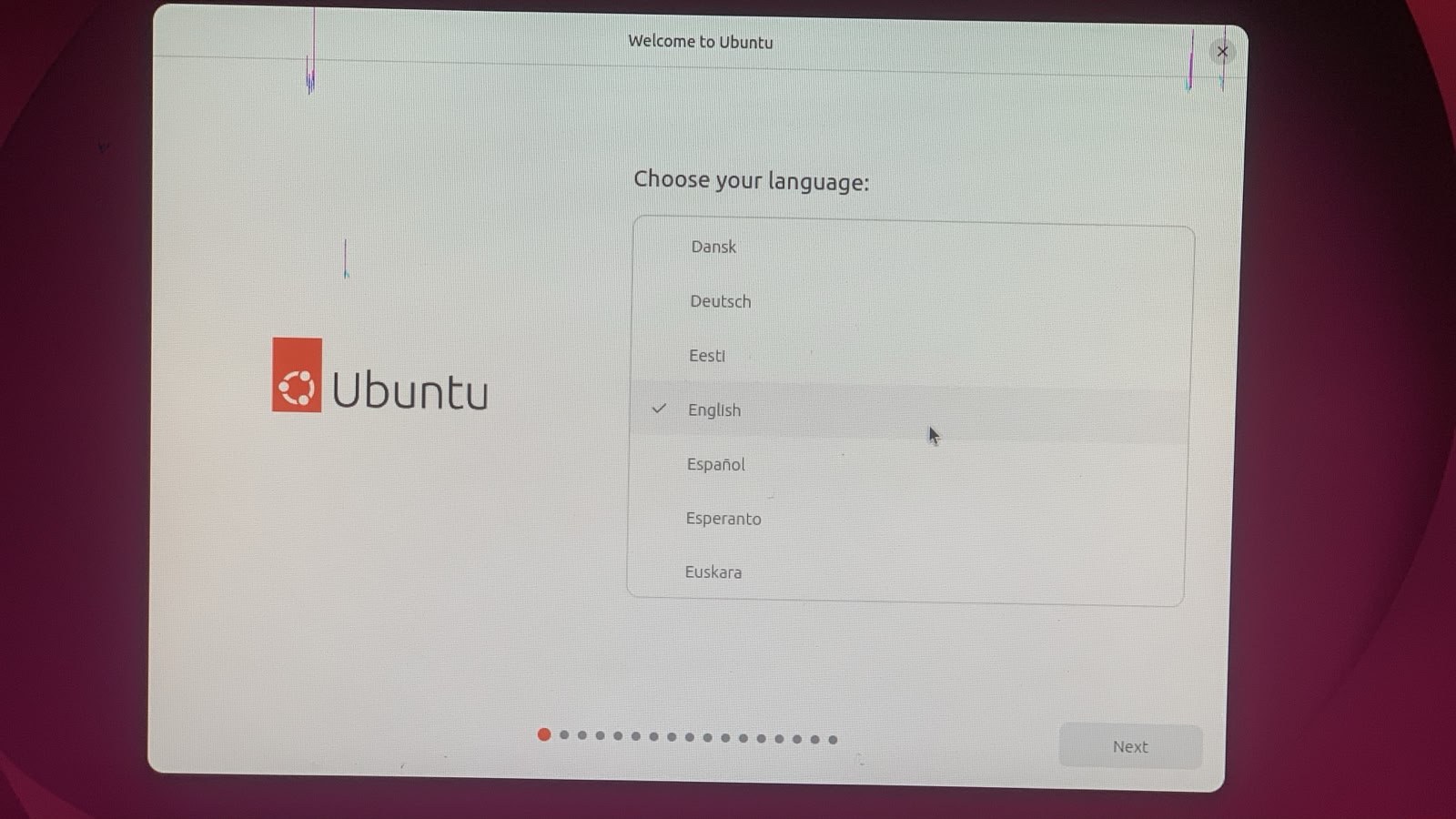
Hit next and here you can explore accessibility in Ubuntu, just click Next:
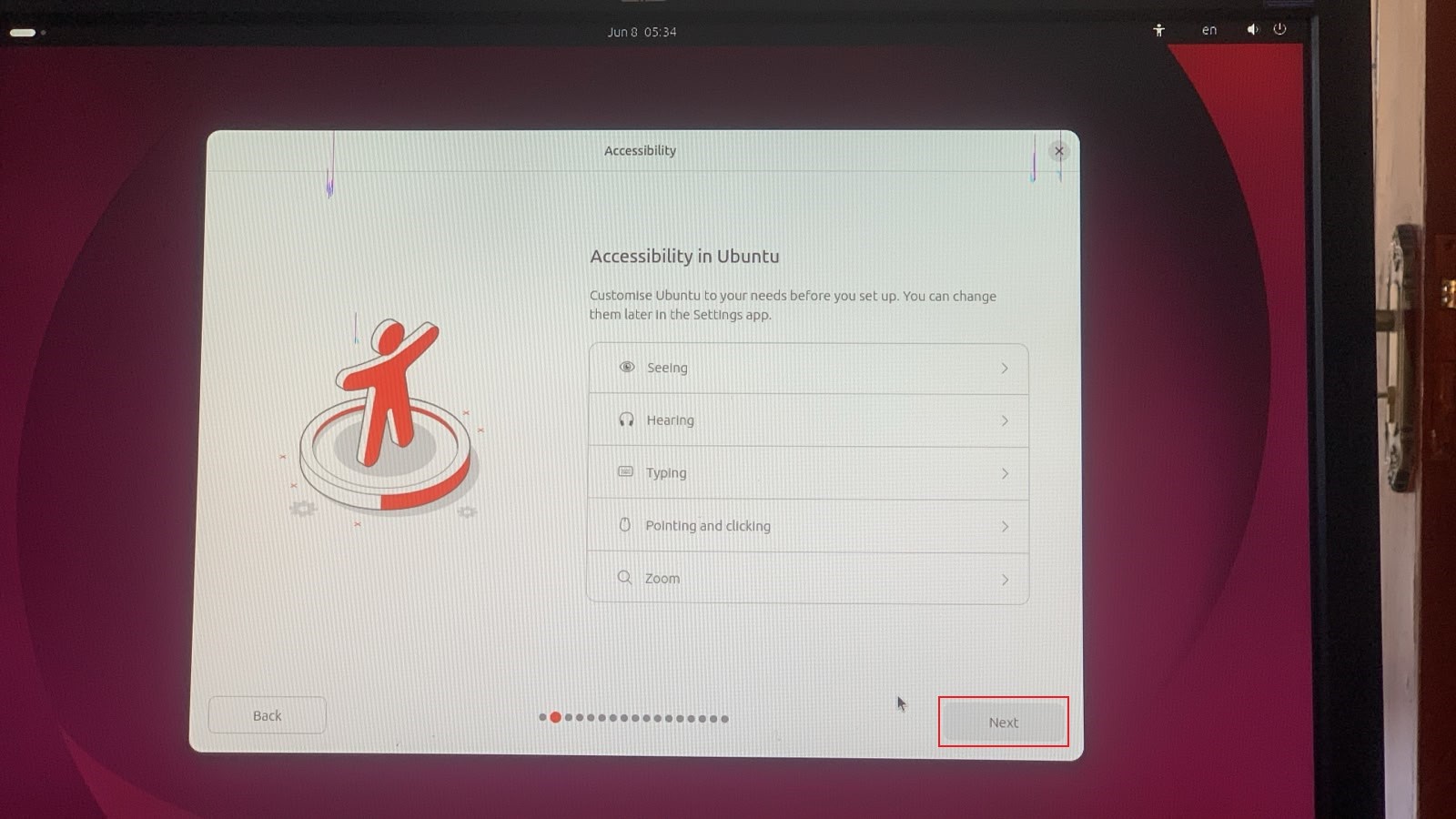
You can select your keyboard layout and variant here and also you can do a small test below in the test field and click Next:
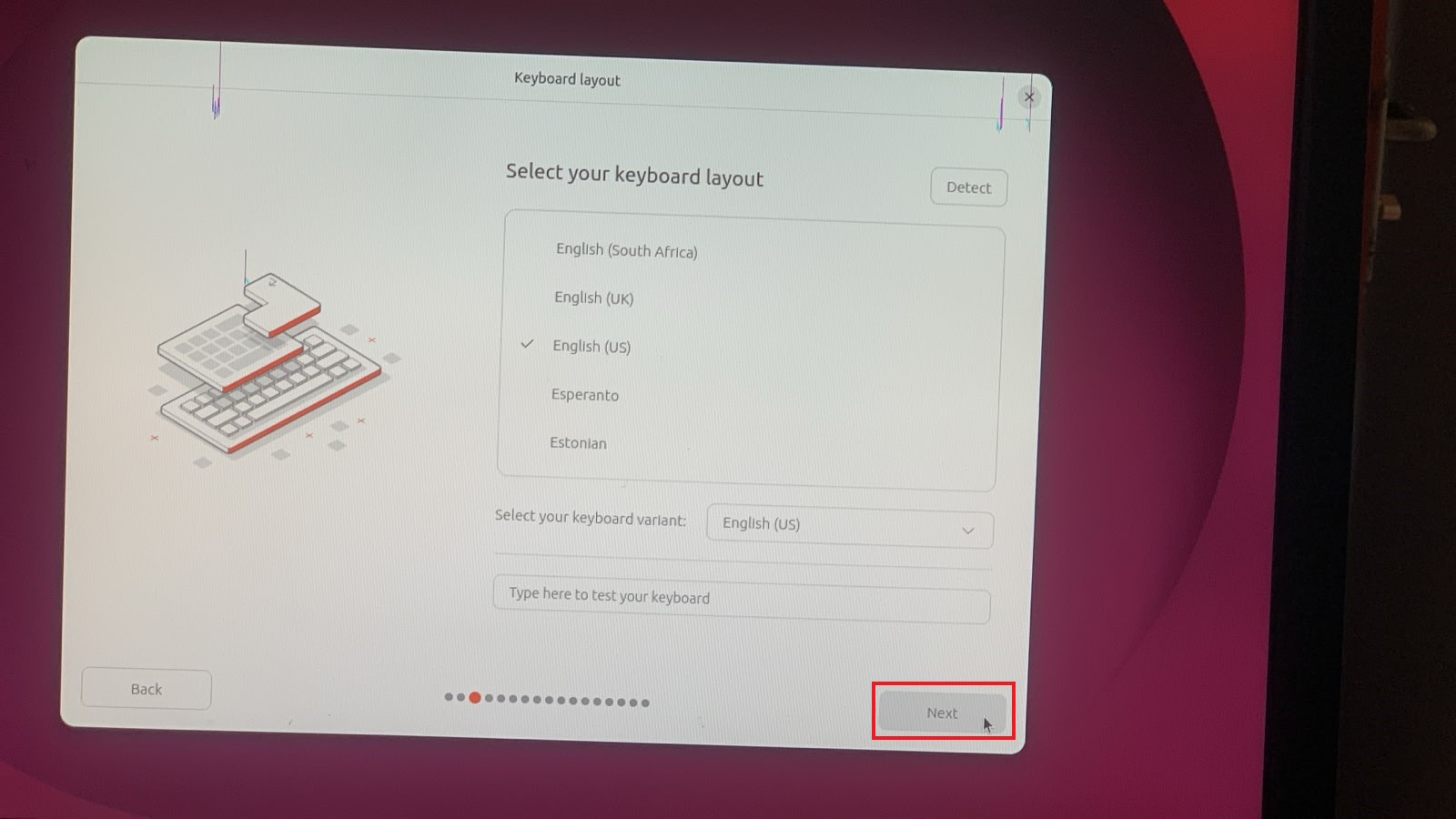
Connect to your network, its recommended then click Next:
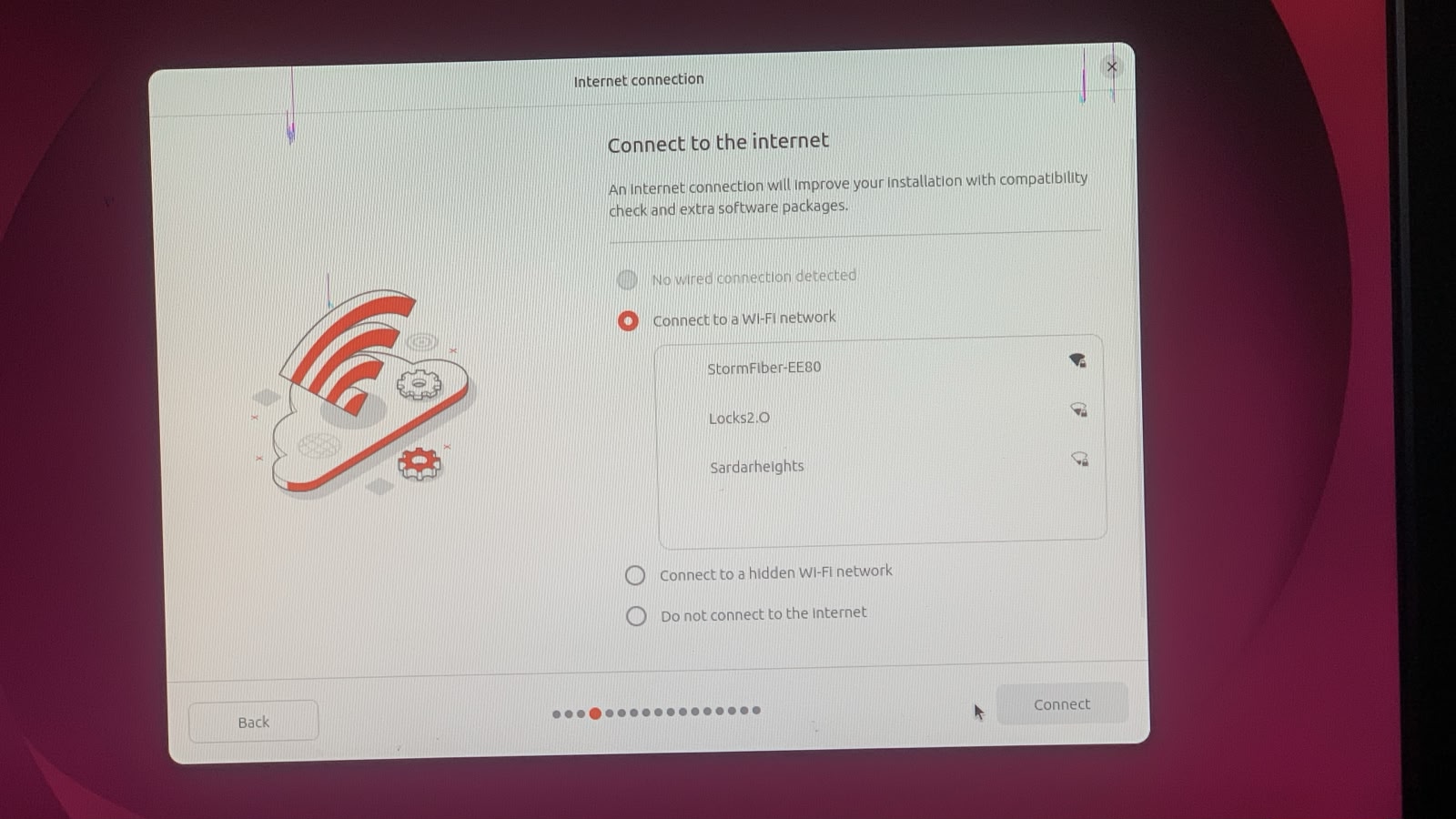
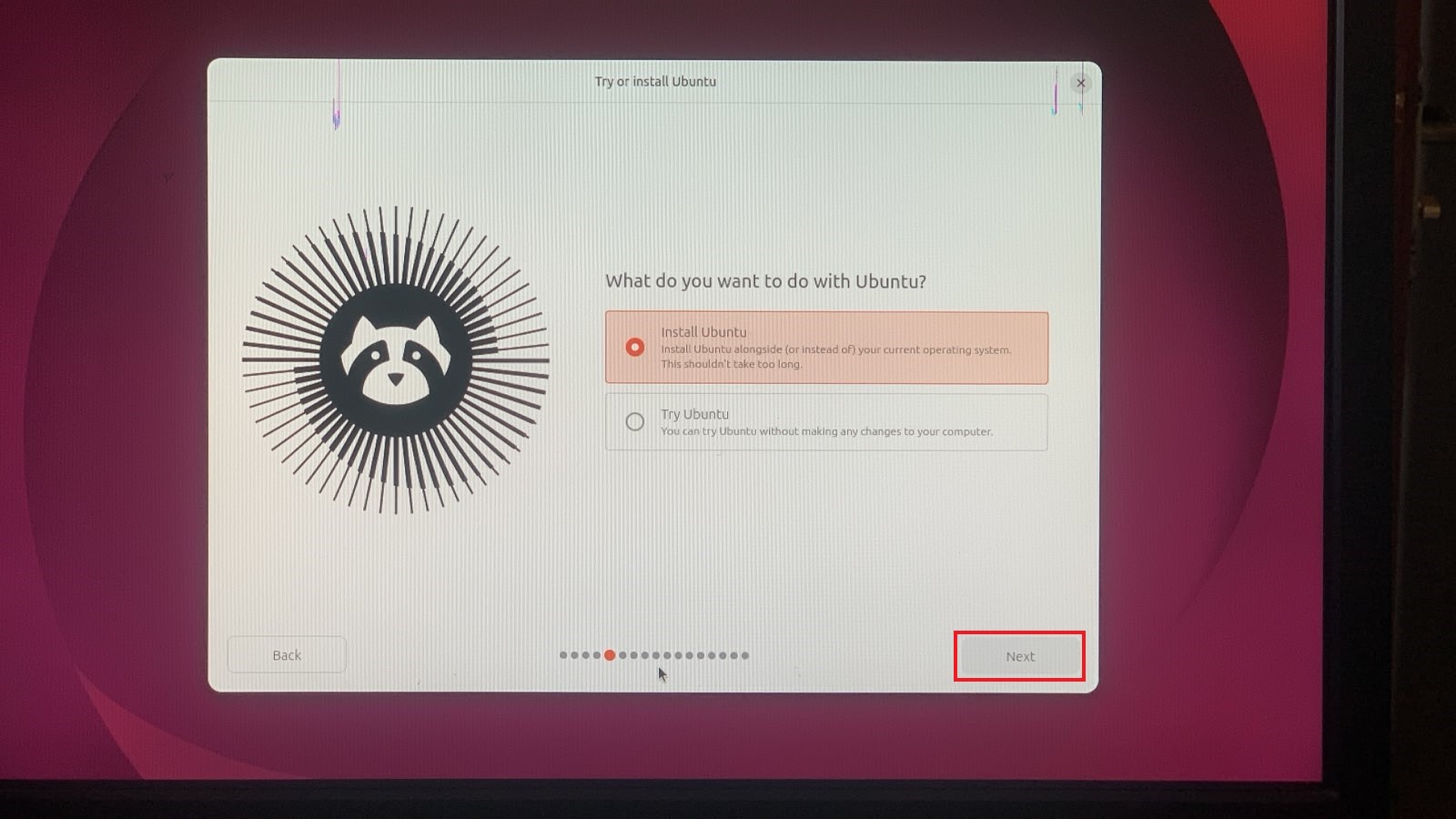
Here select Install Ubuntu option and click Next:
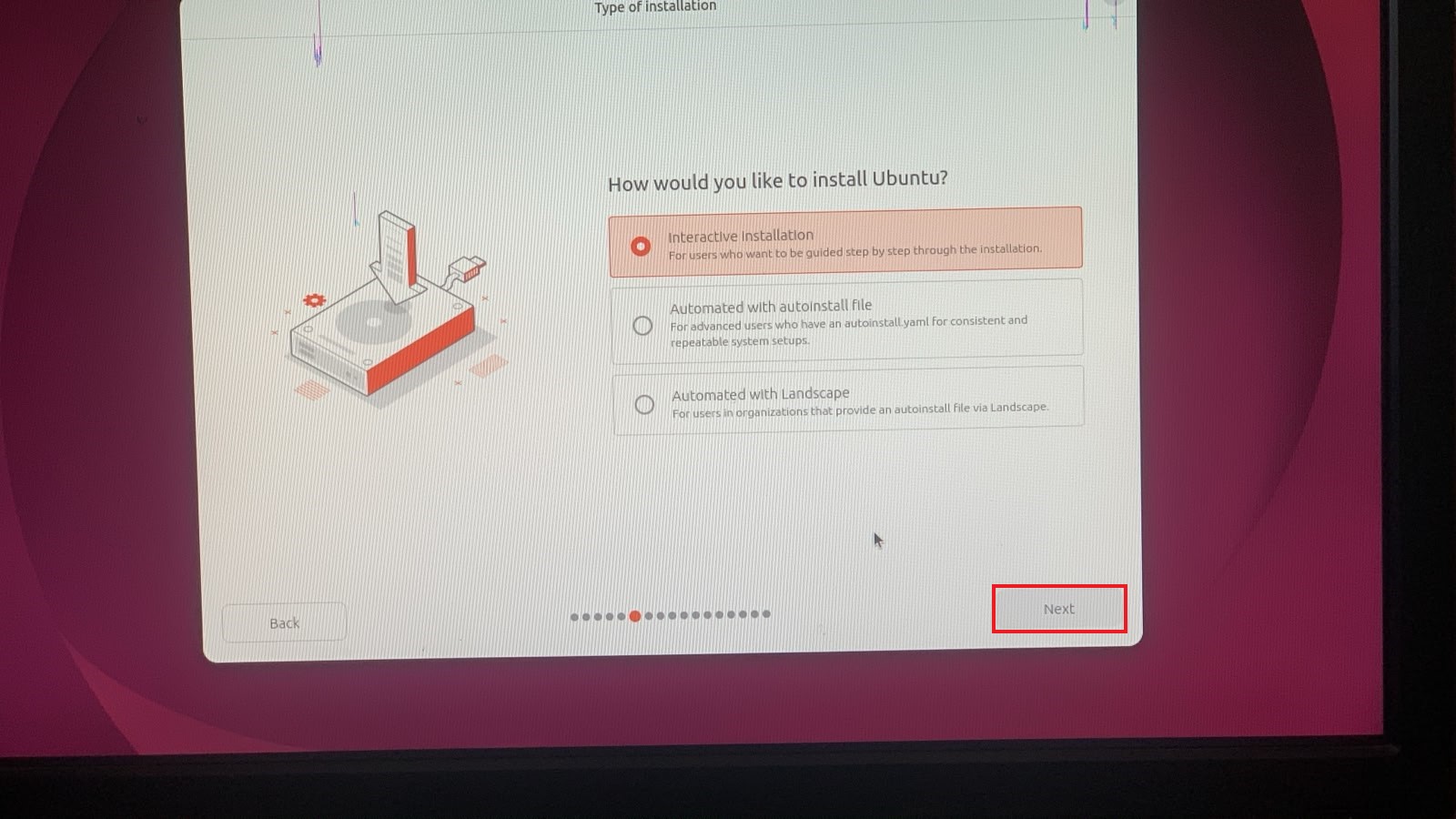
I’ll select Interactive installation and click Next:
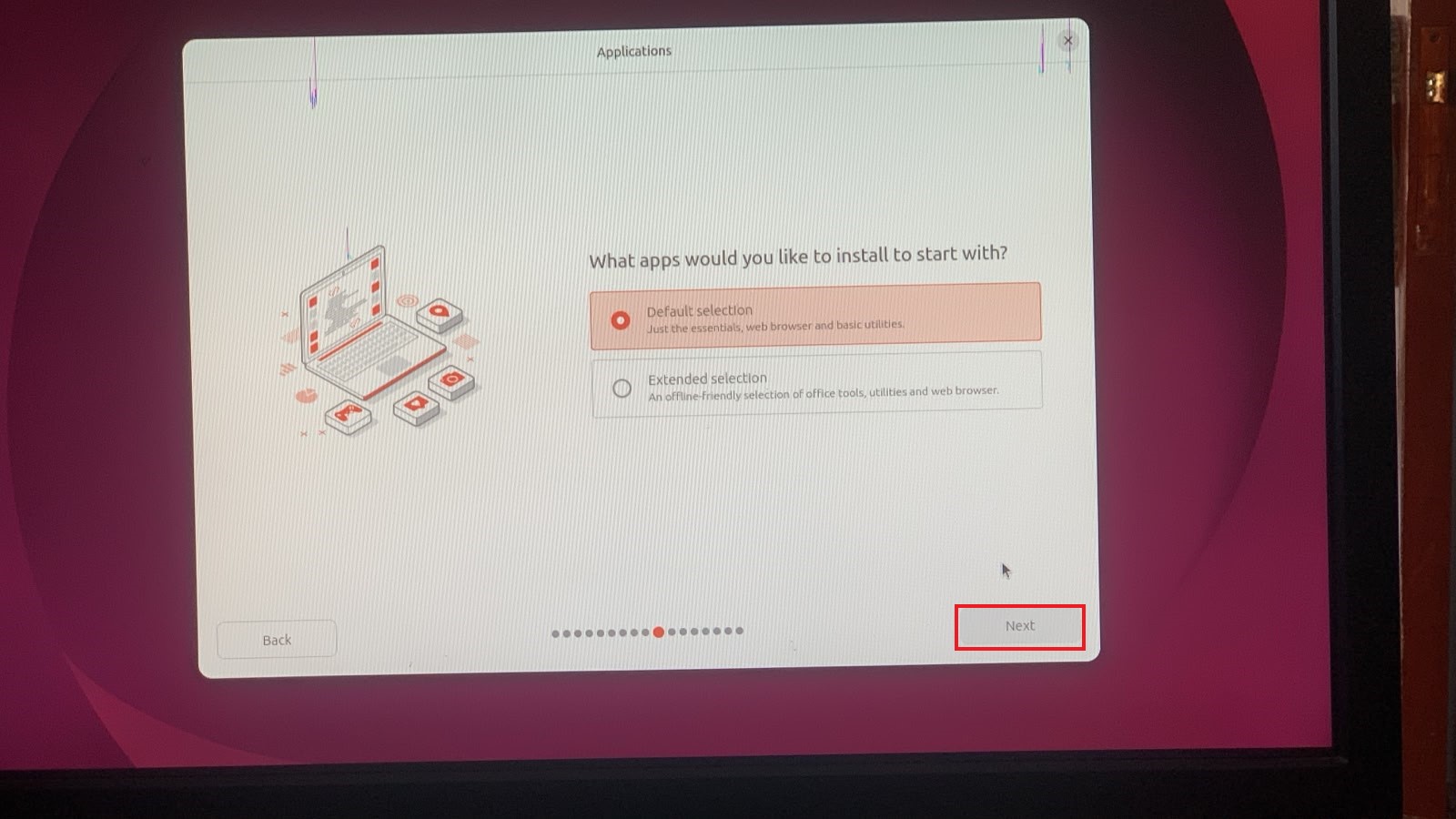
Then you can select Default selection and click Next:
Check these two options: Install third-party software for graphics and Wi-Fi hardware and Download and install support for additional media formats.
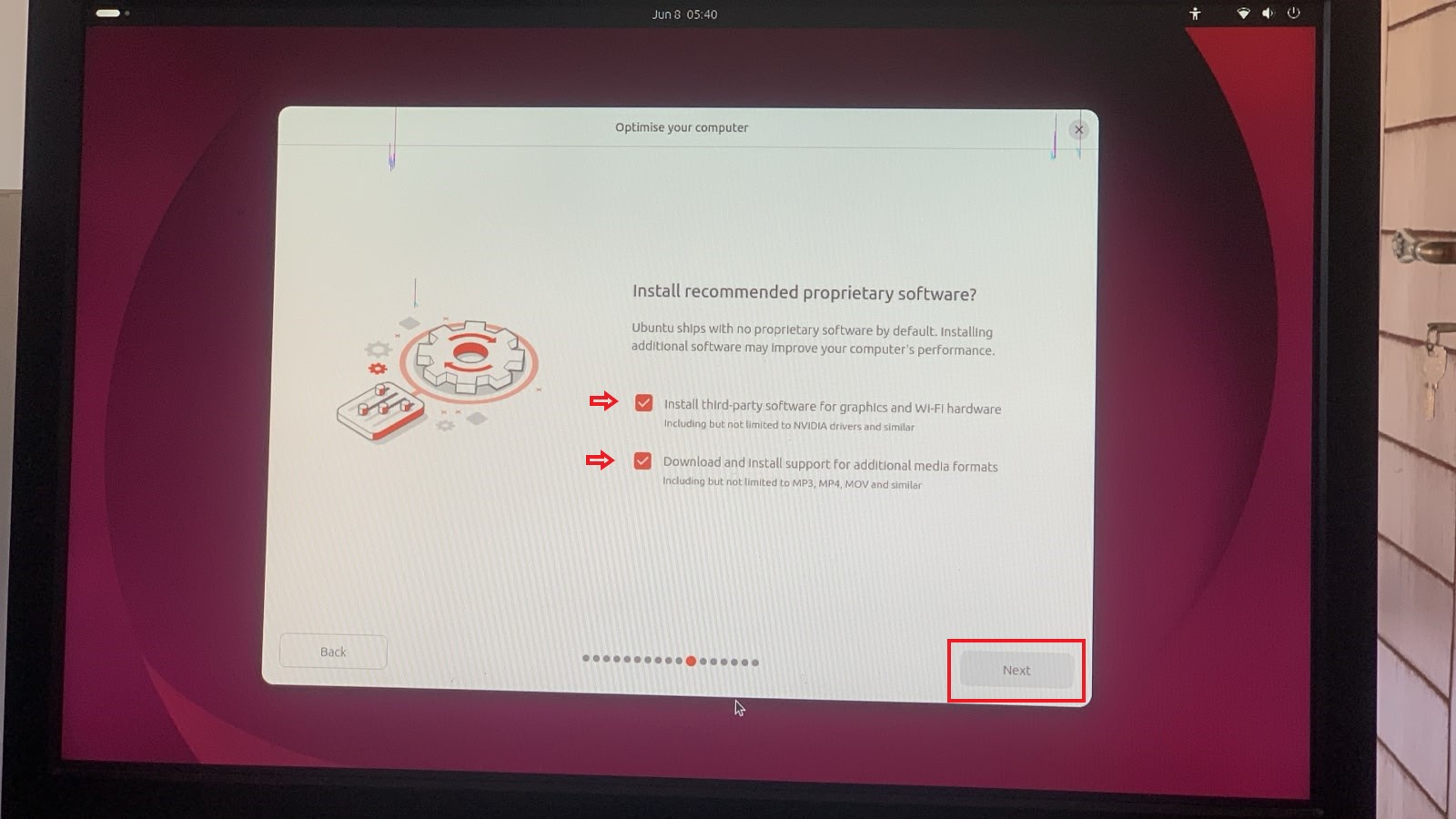
Totally optional, but highly recommended. After that hit Next.
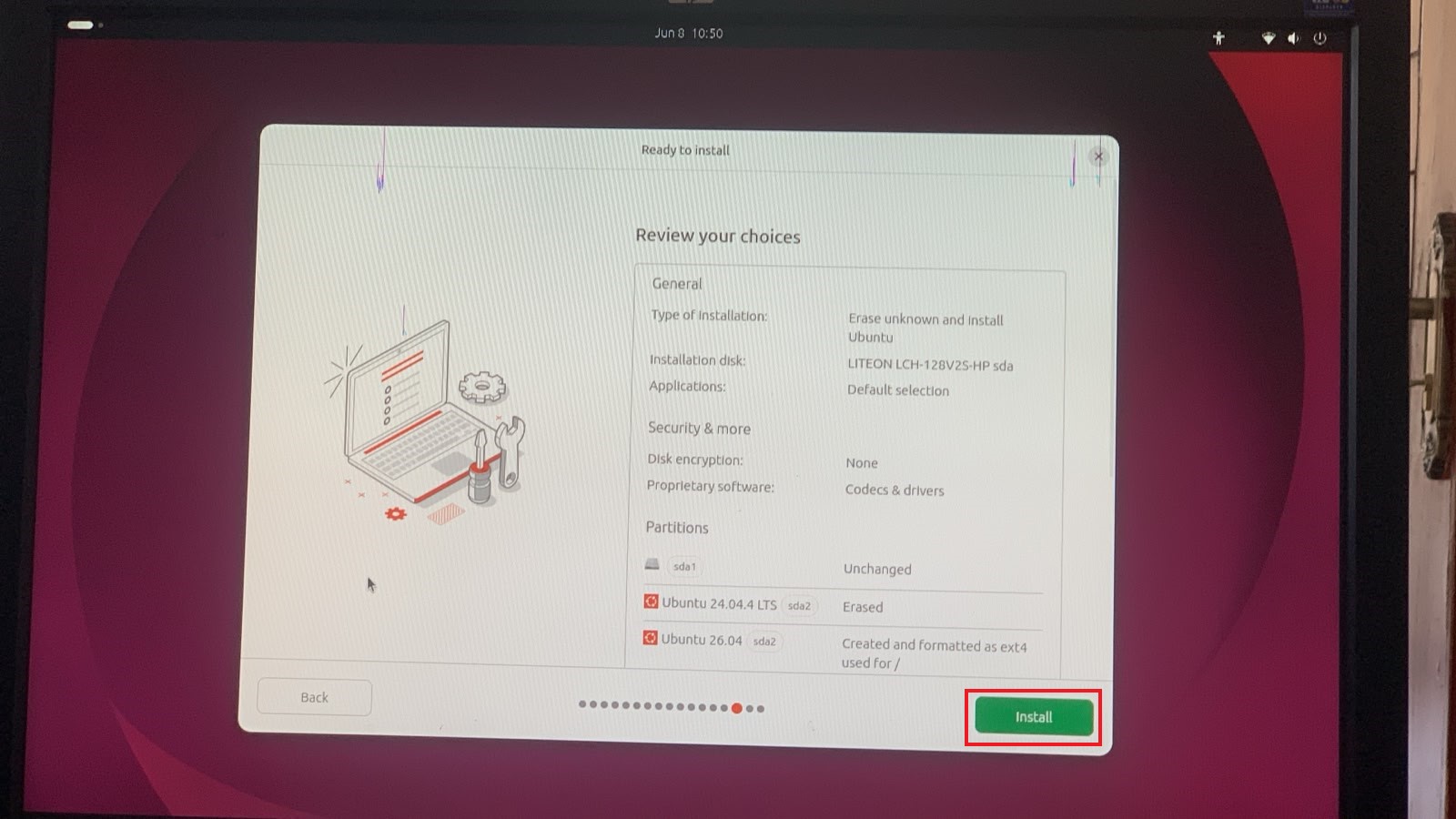
If you are like me coming from Ubuntu 24.04 LTS then it will give you two options here: one is to install Ubuntu 26.04 LTS alongside Ubuntu 24.04 or Erase Ubuntu 24.04 completely and install Ubuntu 26.04 LTS. I will choose to erase Ubuntu 24.04 as I have already backed up all my data and do not need it.
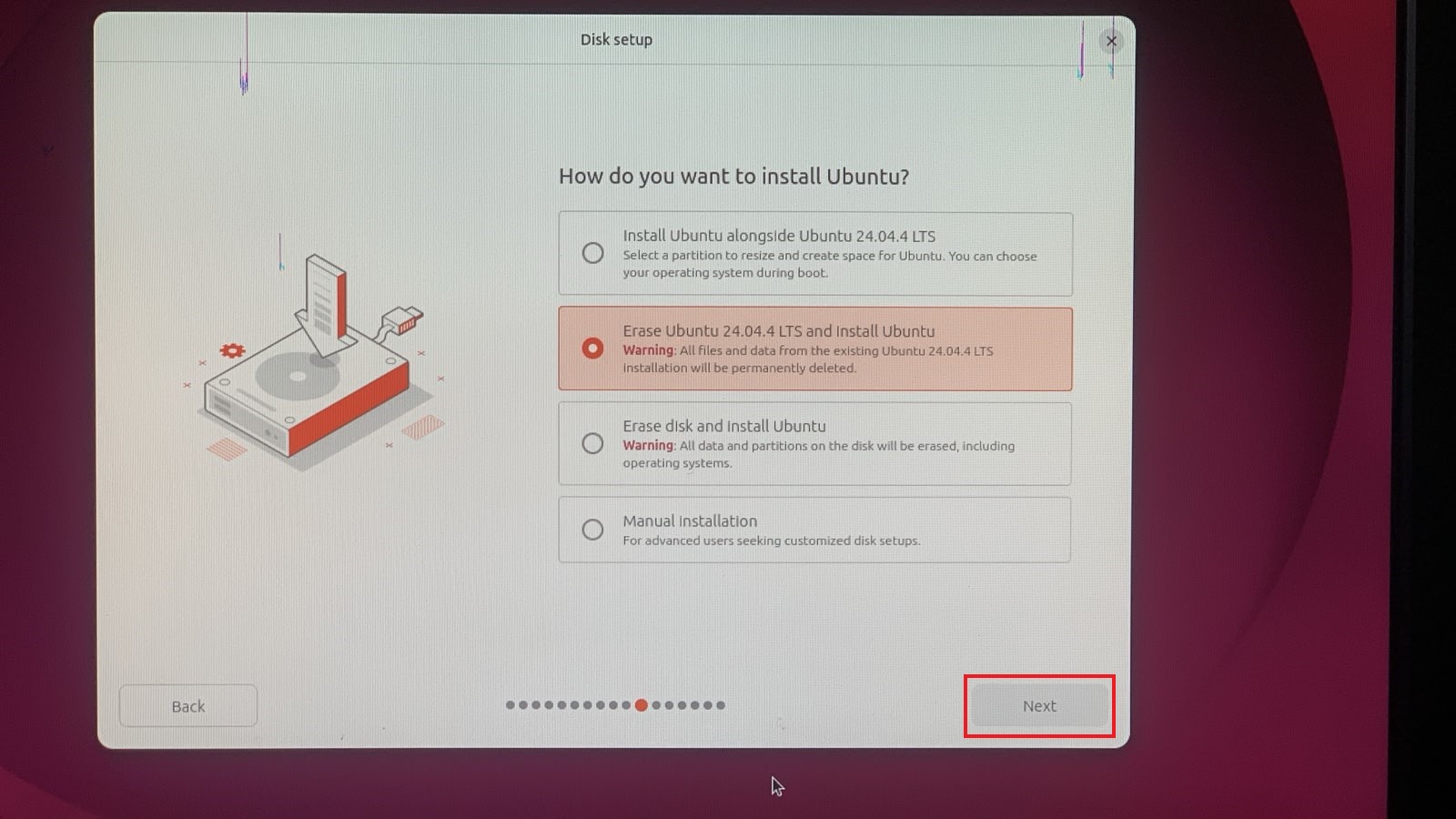
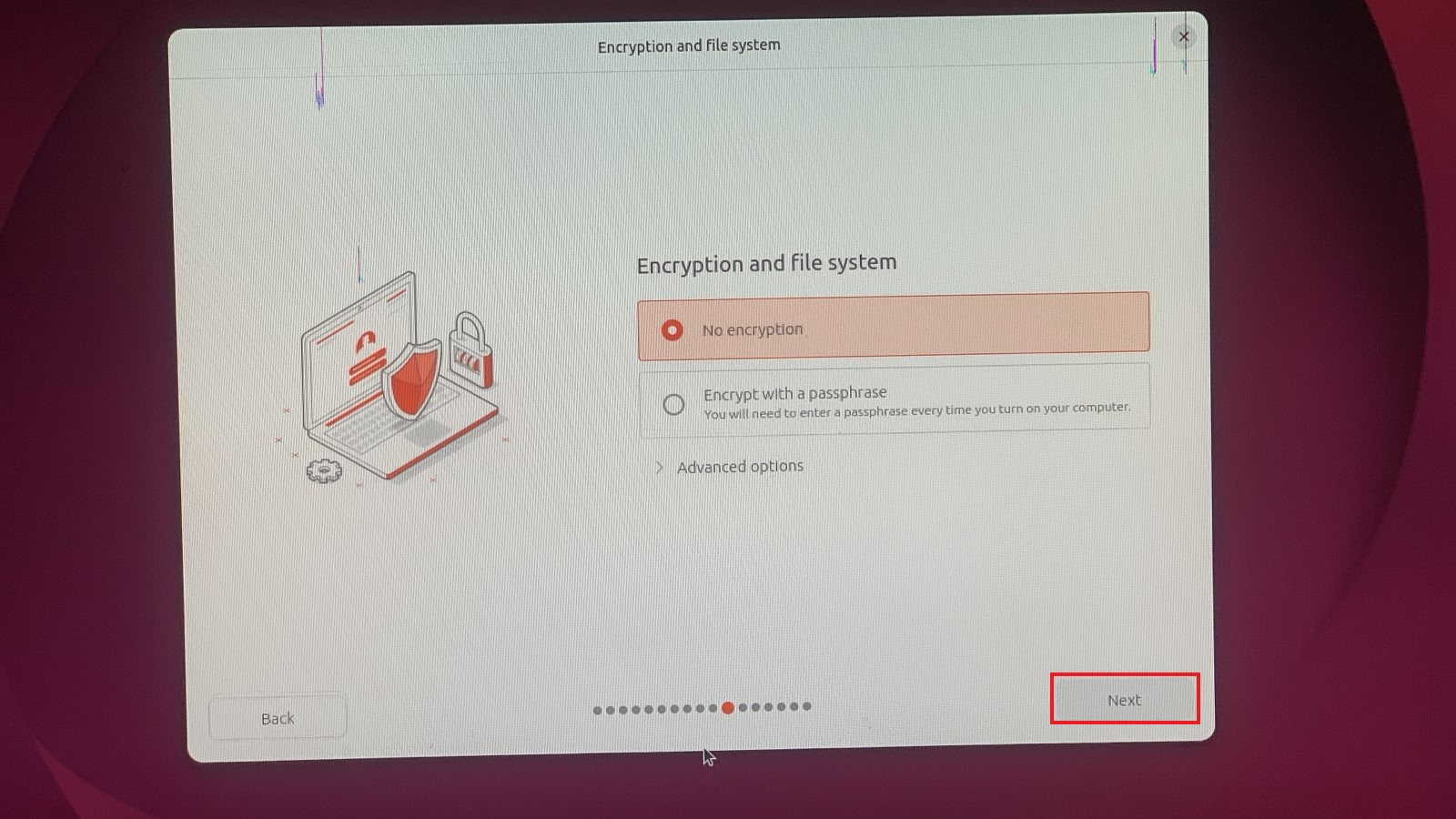
On the next screen, choose No encryption and click Next:
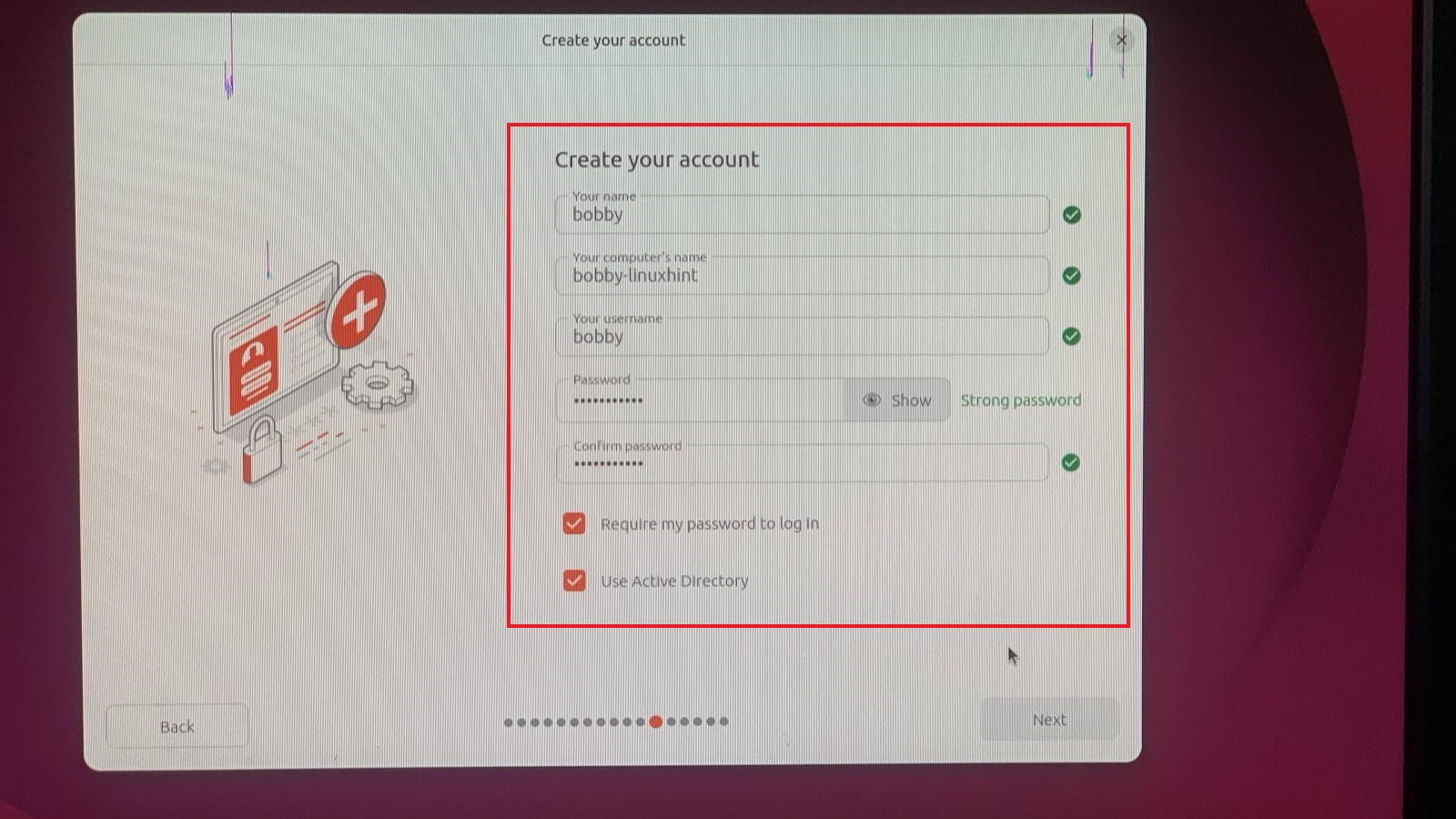
Enter your name, your computer’s name, your username that you want to set and password. Uncheck Use Active Directory if you won’t use it.
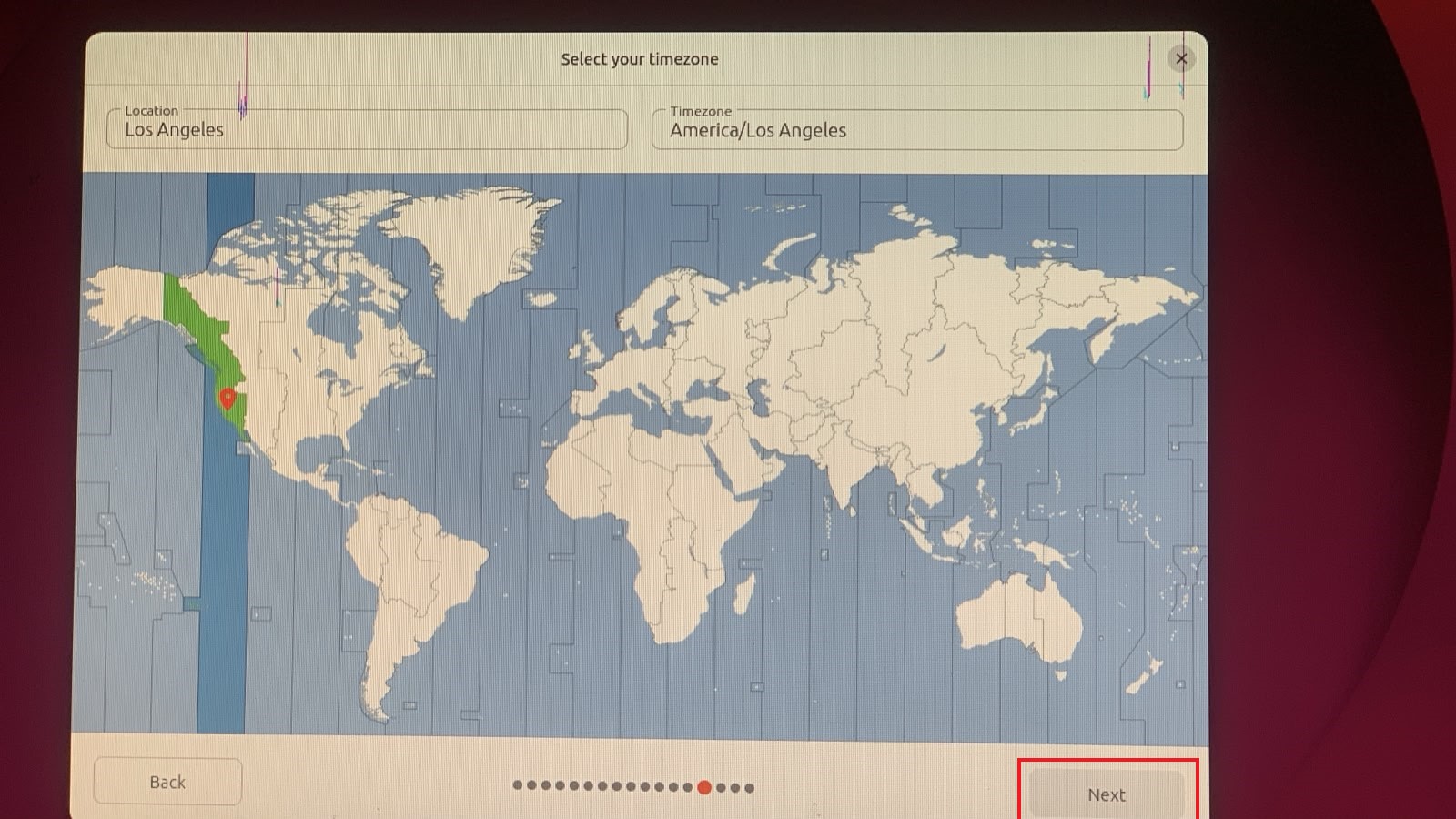
Next select your timezone:
Next review your choices and then click on Install:
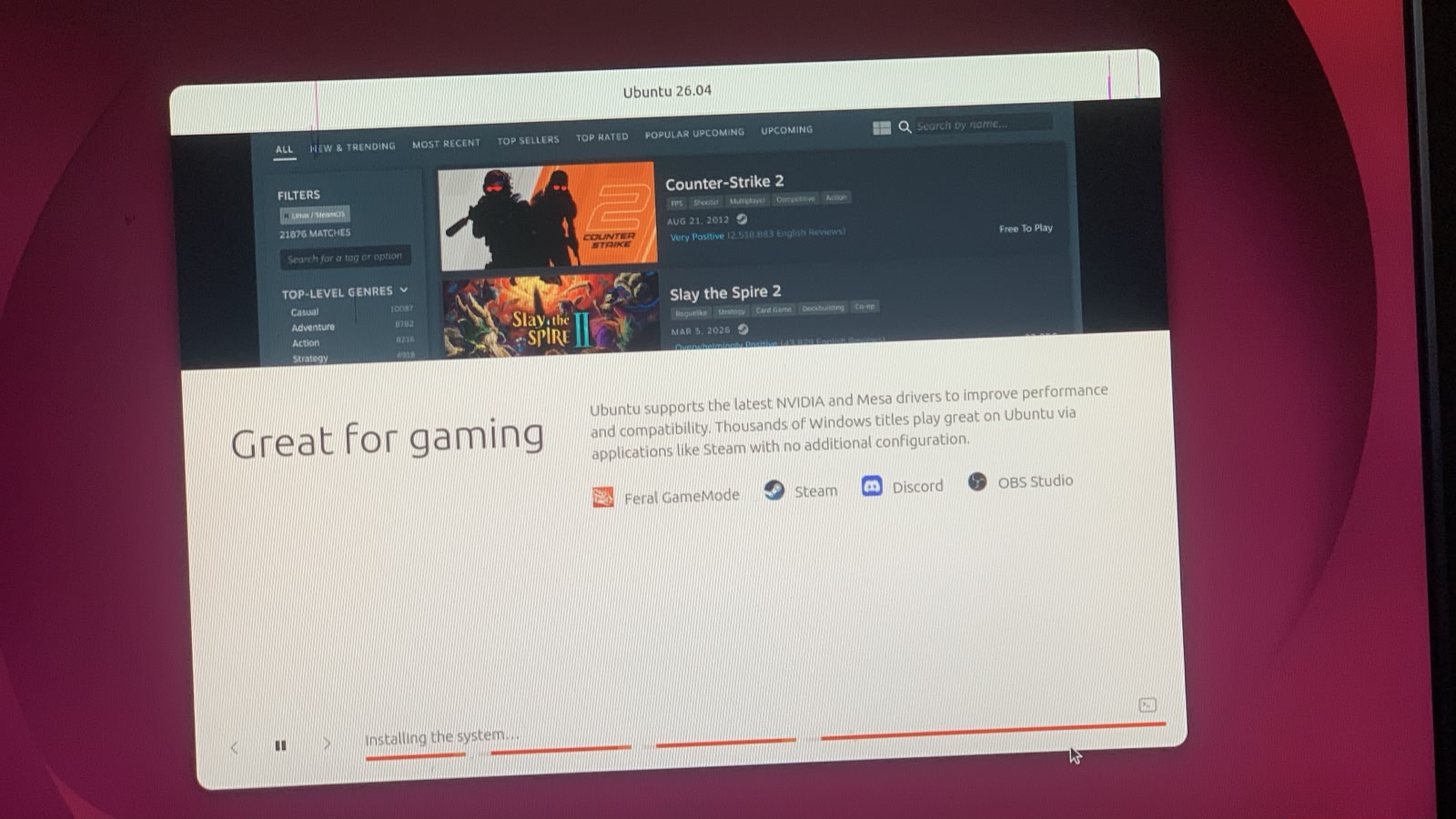
Installation process will begin and all you have to do is sit back and relax:
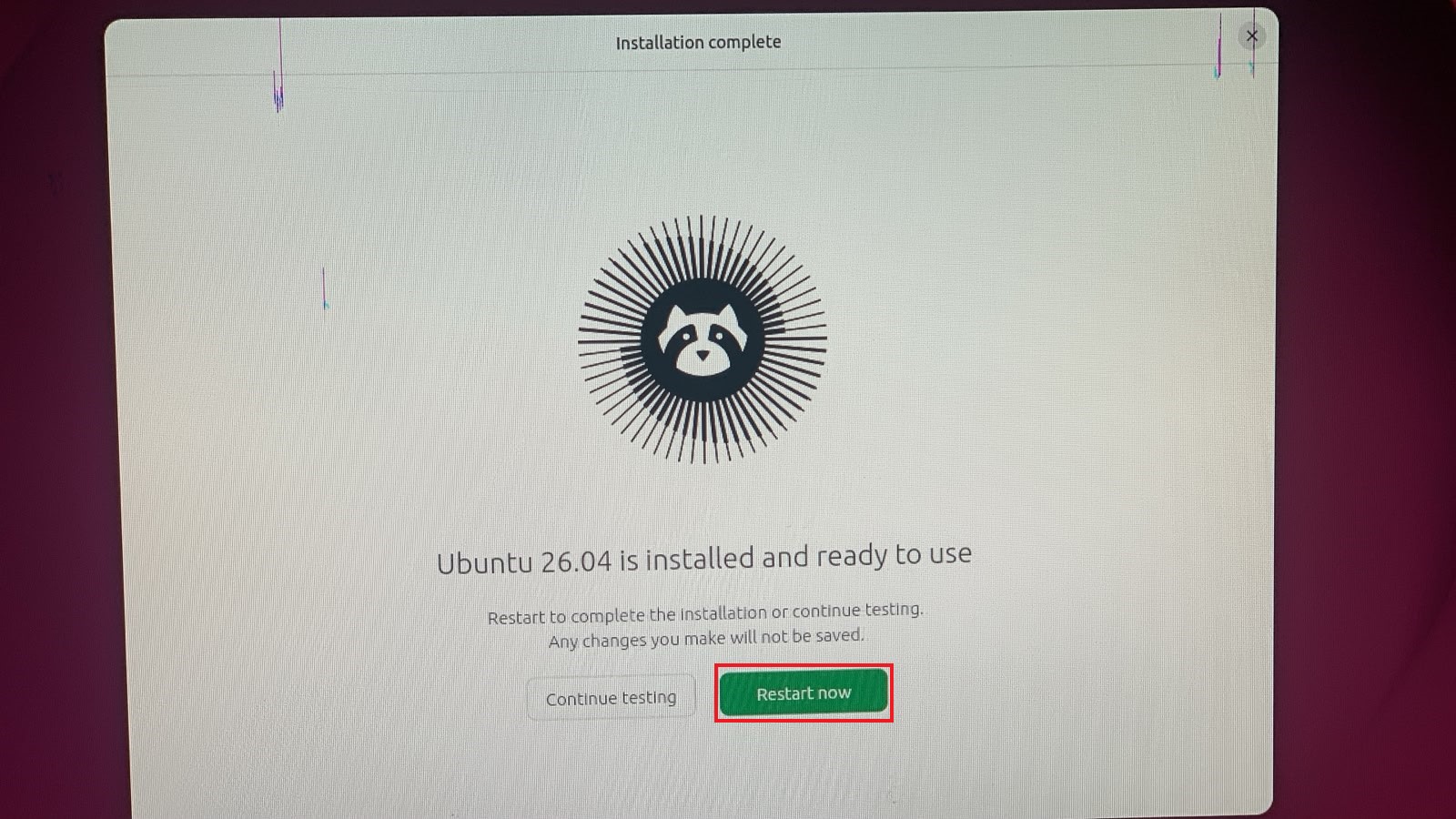
Once installed, you will have this option to either continue testing or restart, I’d highly recommend to restart at this point. So click on Restart Now.
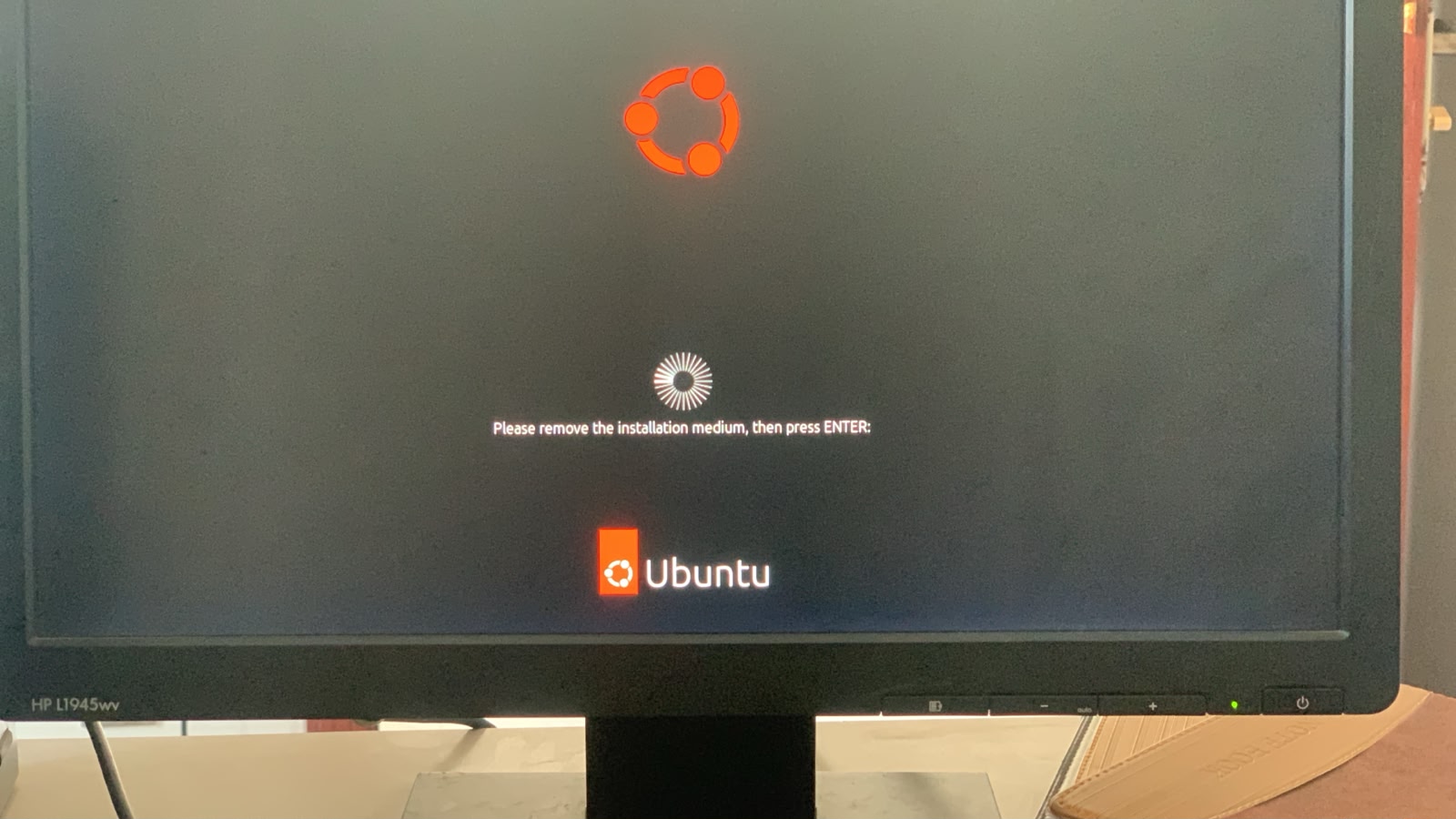
It will ask you to remove the installation media so remove your USB and hit enter key:
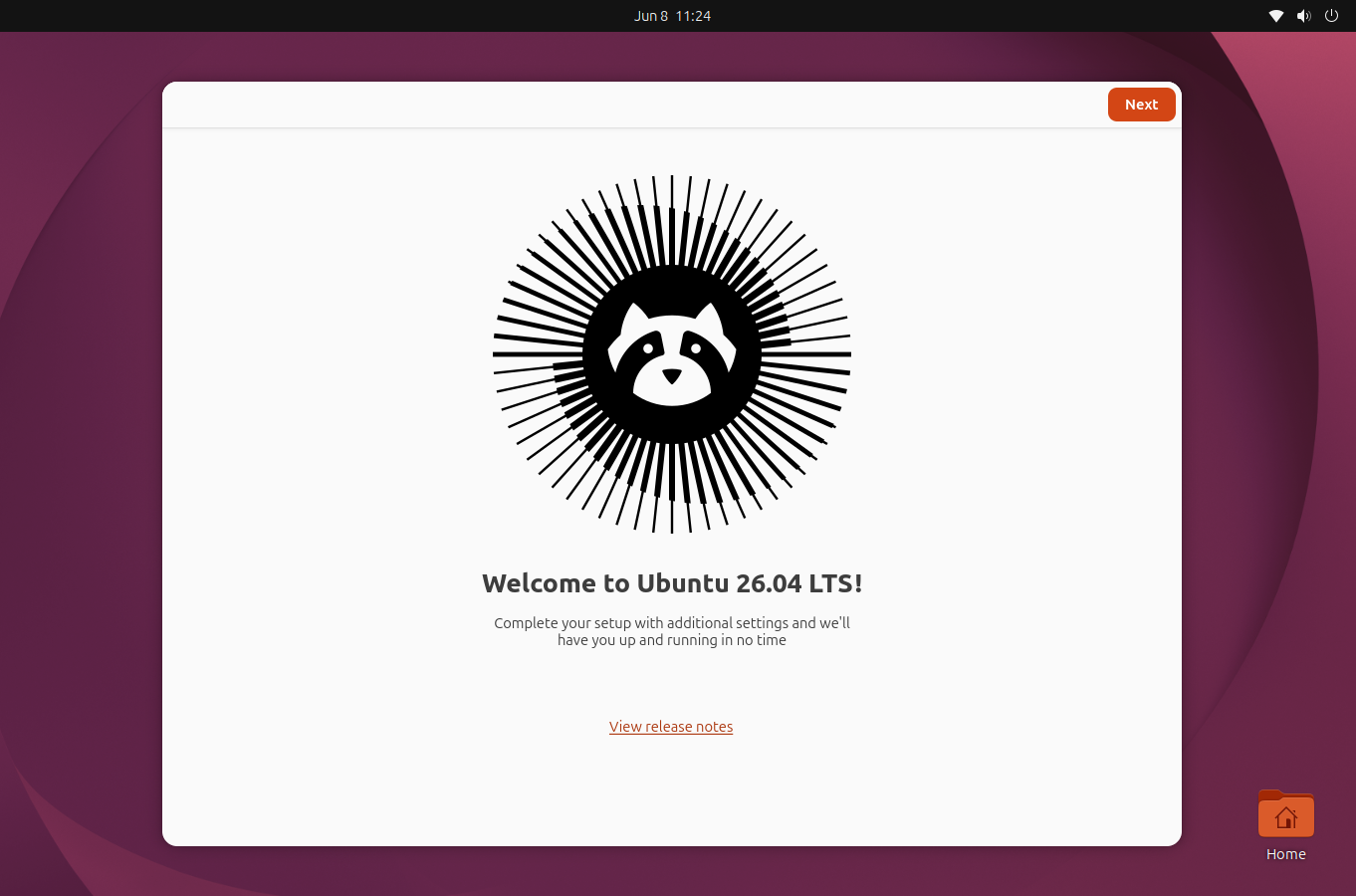
Enter your password and login, you will see this Welcome screen by Ubuntu, just click Next:
Choose styling and accent color of your Ubuntu, I’d like to go with default styling and accent color, you can always choose a different one based on your liking:
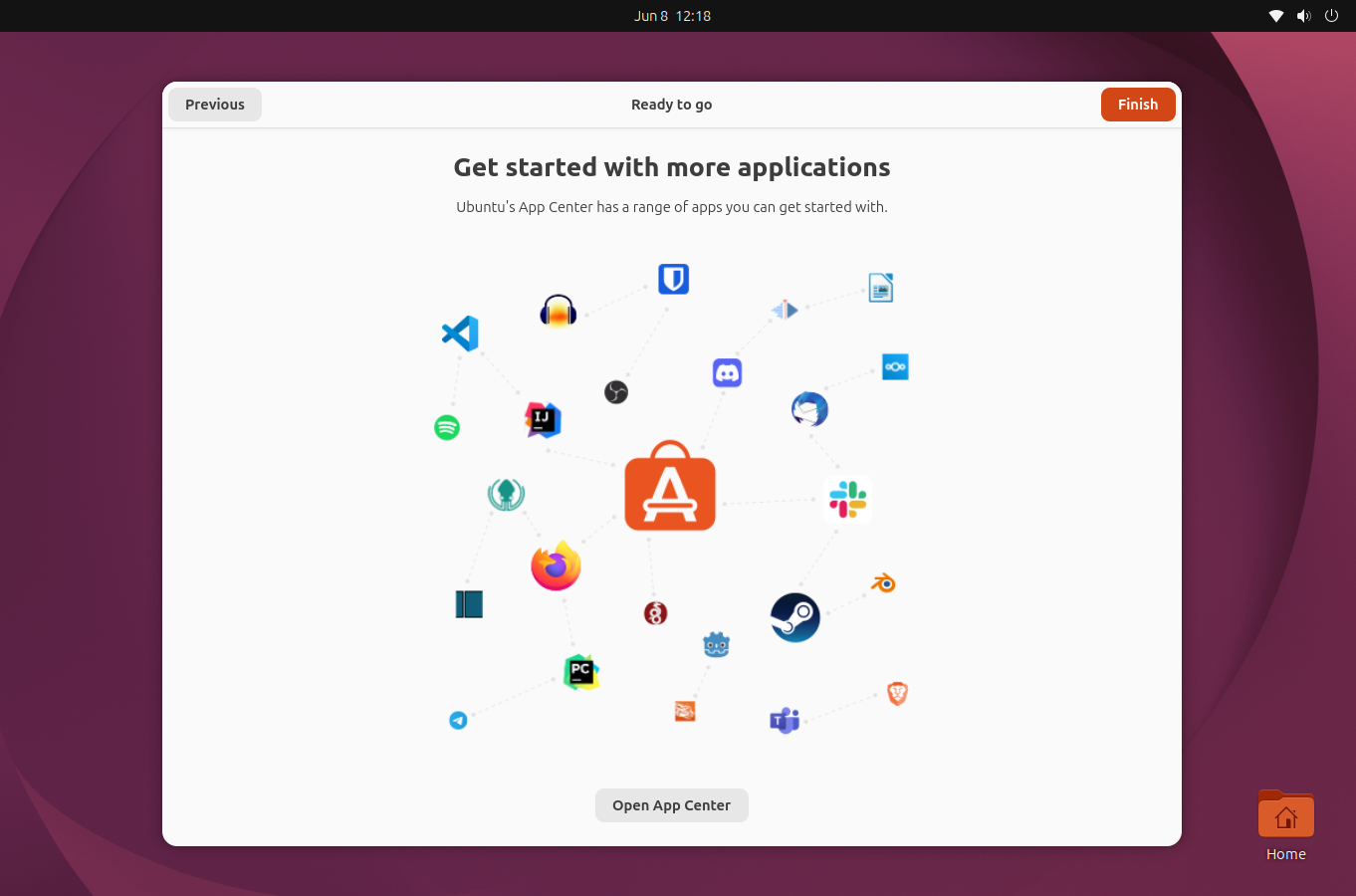
Just finish the process, and you are all set to use Ubuntu 26.04 LTS.
Step 6: Update and Upgrade Repo
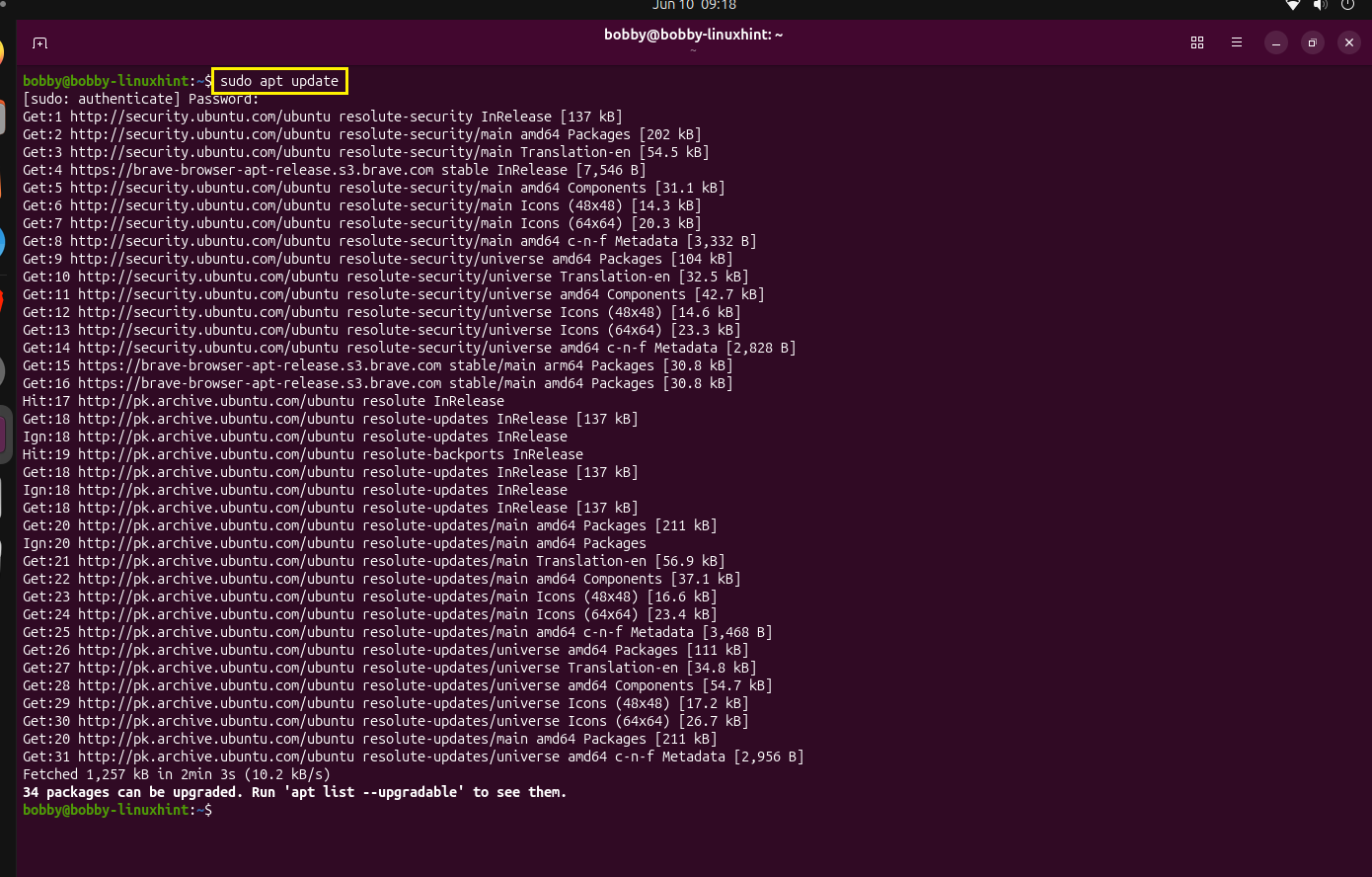
Open terminal by pressing CTRL + ALT + T and run this command:
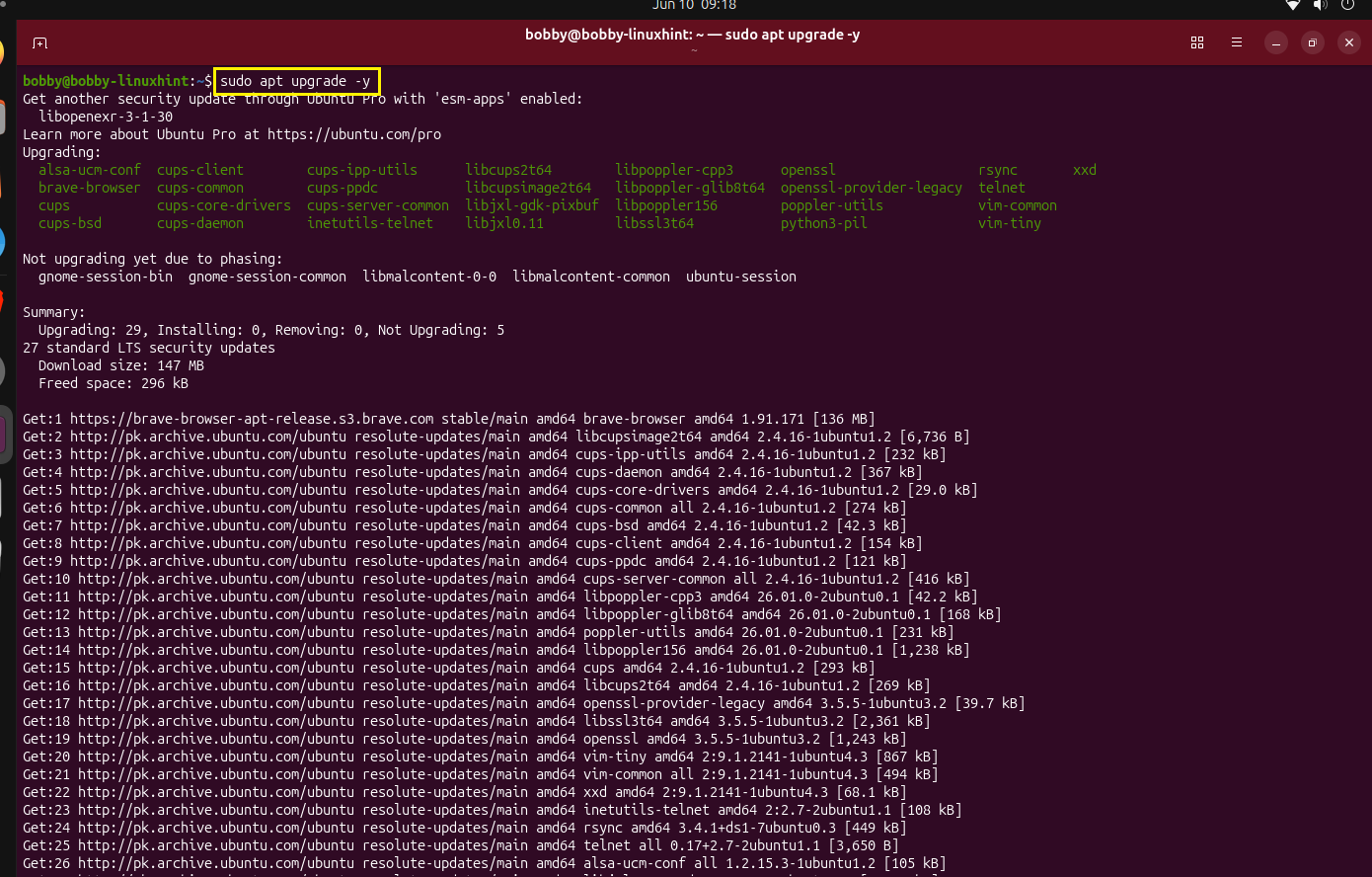
Then run this command to upgrade packages:
Conclusion
At the time of writing this article, upgrading to Ubuntu 26.04 LTS is not available within Ubuntu if you are using Ubuntu 24.04 LTS. You have to create a bootable USB and install it externally where you have two options such as either you install Ubuntu 26.04 LTS alongside Ubuntu 24.04 LTS or Erase Ubuntu 24.04 completely and install Ubuntu 26.04 LTS. If you opt for the second option then it is highly recommended that you back up your data.
I do not like to upgrade from within my OS due to some inherent shortcomings such as old distro config files coming to new distro and many other complexities due to the nature of work I do. Nonetheless if you want to upgrade then wait till Aug, 2026 when Ubuntu 26.04.1 is released. By then it will be available to upgrade from within Ubuntu 24.04 LTS.
Discover more from Ubuntu-Server.com
Subscribe to get the latest posts sent to your email.
