Signal is an popular messaging application as an alternative of WhatsApp. It is available as Desktop application for Windows, Linux and macOS systems.
In order to your Signal desktop application, You must have signup for Signal application with your mobile number. To create new account, install Signal application on your Android or iOS device and create new account.
This tutorial help you to how to install Signal desktop on Ubuntu 20.04 LTS Linux system.
You must have Ubuntu Desktop system access with sudo privileged account.
Signal application is available as snap package for the Linux systems. The Ubuntu 20.04 systems have default Snapd install and recommended for packages installation.
Open a terminal as sudo user and type:
sudo snap install signal-desktop
This will install Signal desktop application on your Ubuntu system.
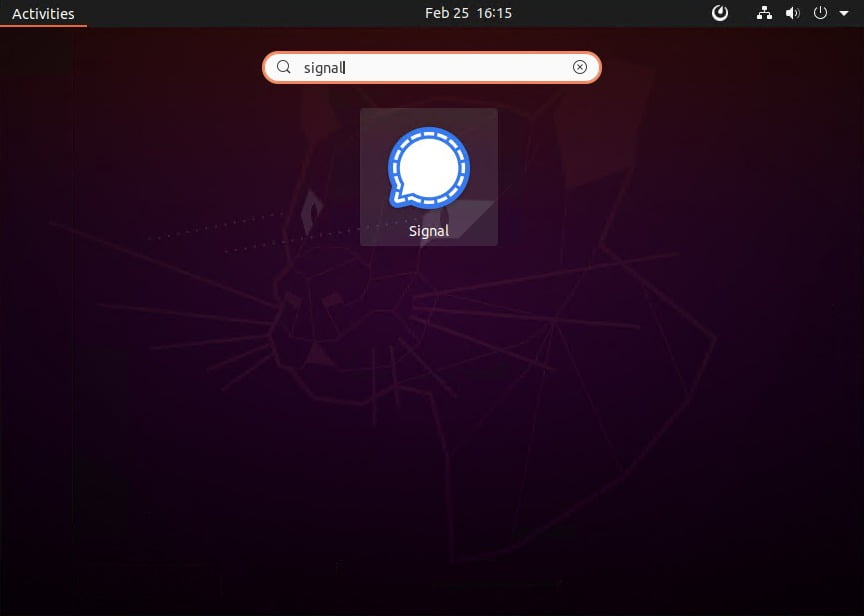
As you have installed Signal application on your Ubuntu desktop system. Search for Signal application under Activities. You will see the launch icon as below screenshot
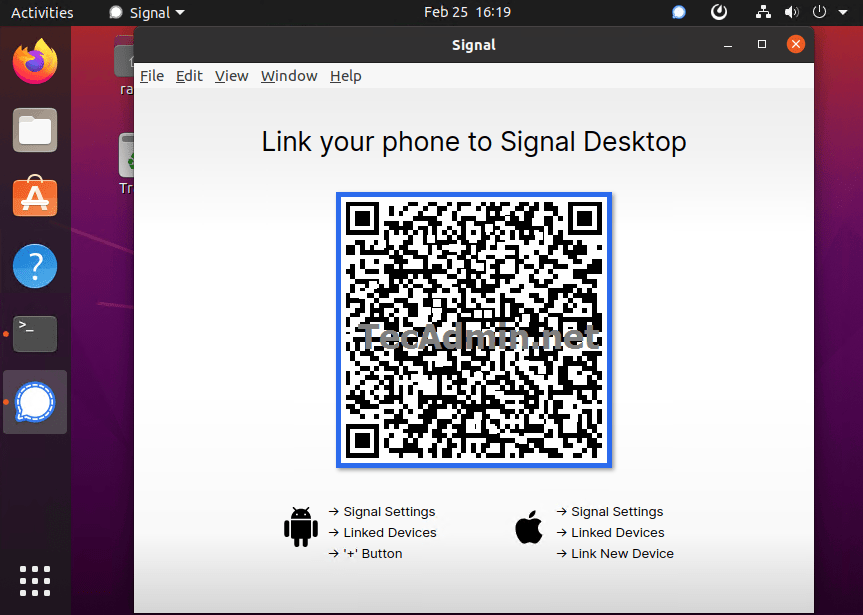
During the first start, a QR code will be displayed on application screen.
To connect application with your Signal account, scan above QR code from Signal application on your mobile. Follow below steps to connect Signal Desktop application:
That’s it. You have successfully installed Signal application on Ubuntu system. Also connected application with your Signal account.
This tutorial helped you to install Signal desktop application on Ubuntu 20.04 Linux system. Also successfully authenticated and connected to your Signal account.
The post How To Install Signal Desktop on Ubuntu 20.04 appeared first on TecAdmin.
Lo and behold 👐, Ubuntu MATE 26.10 (Stonking Stingray) is here! 🎊 We are back…
This article provides a guide demonstrating how to deploy Kiwix Server on Ubuntu VPS. What…
A few months ago, we introduced Myna, our project to bring private, local speech-to-text dictation…
Ubuntu 26.10 “Stonking Stingray” arrives at a time when AI tools are accelerating vulnerability discovery.…
One of the best things about Rust is how easy it is to get started.…