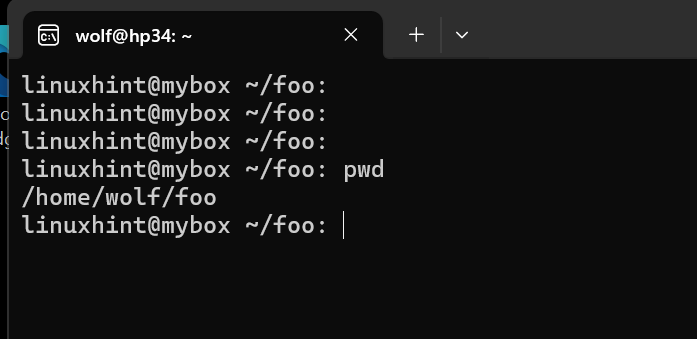
This is my current prompt below:
To change the prompt you will update .bashrc and set the PS1 environment variable to a new value.
Here is a cheatsheet of the prompt options:
You can use these placeholders for customization:
I want to change my prompt to say
Here is my new prompt I am going to use:
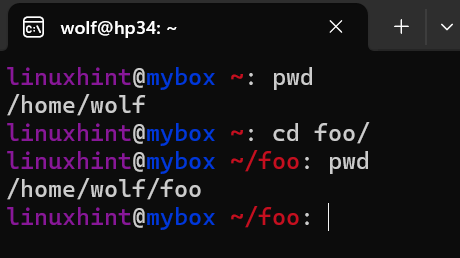
Can you guess what that does? Yes for my article writing this is exactly what i want. Here is the screenshot:
A lot of people will want the Username, Hostname, for my example i don’t! But you can use u and h for that. I used w to show what directory i am in. You can also show date and time, etc.
You can also play with setting colors in the prompt with these variables:
Background Colors:
e[40m – Black
e[41m – Red
e[42m – Green
e[43m – Yellow
e[44m – Blue
e[45m – Magenta
e[46m – Cyan
e[47m – White
Reset Color:
e[0m – Reset to default
Here is my colorful version. The backslashes are primarily needed to ensure proper formatting of the prompt and avoid breaking its functionality.
This uses Magenta, Blue and Red coloring for different parts of the prompt.
You can see how to customize your bash prompt with PS1 environment in Ubuntu. Hope this helps you be happy with your environment in linux.
Canonical announces that the Advantech AOM-2721 is officially joining the list of Ubuntu Certified Hardware.…
Yet again instead of tweets, a blog post. The backlog got out of hand -…
This article provides a guide demonstrating how to deploy OpenProject on Ubuntu VPS. What is…
Canonical is pleased to announce that NVIDIA’s newly introduced NVIDIA Nemotron 3.5 Lightning, an open,…
If you have been using an ecommerce store to place online orders or have been…