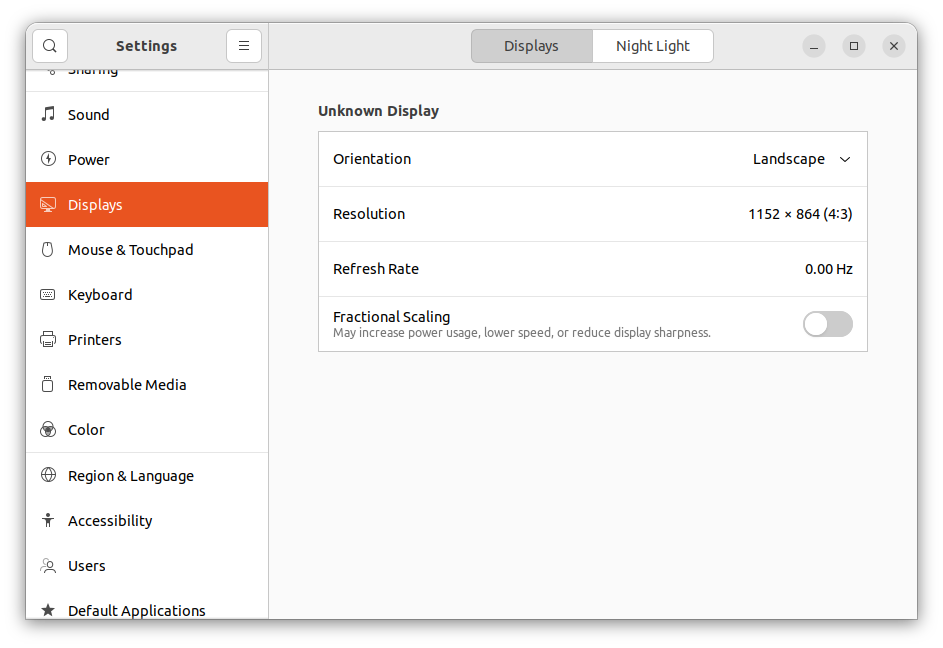
Recently I created a Ubuntu desktop virtual machine in the Hyper-V platform. After login to the desktop realises that the screen resolution is not correct. I tried to change VM to full-screen mode but it opens in partial screen. When I checked the resolution under the settings found below:
This how-to guide will help you to change the screen resolution of an Ubuntu VM in Hiper-V. This also allows you to run Ubuntu VM in full-screen mode in Hiper-V.
Follow the instructions to change the screen resolution of an Ubuntu VM in Hyper-V:
sudo vim /etc/default/grub
Update the value of GRUB_CMDLINE_LINUX_DEFAULT variable as below:
GRUB_CMDLINE_LINUX_DEFAULT="quiet splash video=hyperv_fb:1366x768"
Here 1366×768 is the screen resolution of the host machine. You need to change this value as per your host machine resolution
sudo update-grub
sudo apt install linux-image-extra-virtual
Once the system is rebooted, log in to the Ubuntu desktop and change to full screen. You will see the Ubuntu desktop open in full screen.
Now, check the updated screen resolution of Ubuntu running on the Hyper-V platform.
This tutorial helped you to change the screen resolution of an Ubuntu VM running on the Hyper-V platform.
The post Change Screen Resolution of An Ubuntu VM in Hyper-V appeared first on TecAdmin.
Lo and behold 👐, Ubuntu MATE 26.10 (Stonking Stingray) is here! 🎊 We are back…
This article provides a guide demonstrating how to deploy Kiwix Server on Ubuntu VPS. What…
A few months ago, we introduced Myna, our project to bring private, local speech-to-text dictation…
Ubuntu 26.10 “Stonking Stingray” arrives at a time when AI tools are accelerating vulnerability discovery.…
One of the best things about Rust is how easy it is to get started.…