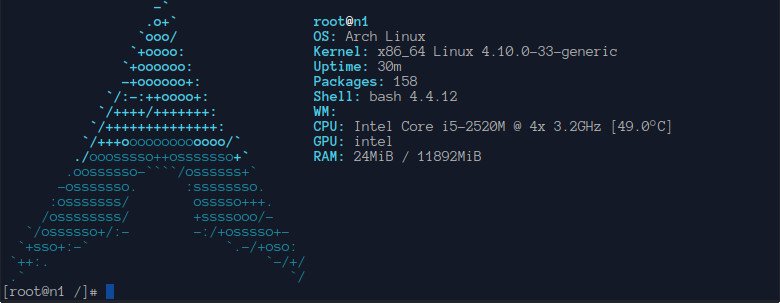
Containers are a lightweight virtualization technology. They are more akin to an enhanced chroot than to full virtualization like Qemu or VMware, both because they do not emulate hardware and because containers share the same operating system as the host.
First of all, you have to install lxc and its dependencies. So, go ahead and issue the following command:
sudo apt-get install lxc
The next step, after installing lxc, is to download the template you want and create the container:
sudo lxc-create -t download -n n1
After executing the above command, the system will list the available templates and interactively ask you to choose among the options of Distribution, Release and Architecture.
In this example, we will use an archlinux image.
Distribution: archlinux
Release: current
Architecture: amd64
Note: Adjust the above options to your needs.
Once the operation is finished, you’ll see the following message:
You just created an ArchLinux container (release=current, arch=amd64, variant=default)

For security reason, container images ship without user accounts
and without a root password.

Use lxc-attach or chroot directly into the rootfs to set a root password
or create user accounts.
This means that the container has been created successfully.
You can verify that the container is created by issuing the following command:
sudo lxc-ls --fancy
Which will return:
NAME STATE   AUTOSTART GROUPS IPV4 IPV6
n1   STOPPED 0         -      -    -
To run the created container, you have to execute the following command:
sudo lxc-start -n n1 -d
Obviously, n1 is the container we created earlier.
To see if it started, run:
sudo lxc-ls --fancy
Which will now return:
NAME STATE   AUTOSTART GROUPS IPV4       IPV6
n1   RUNNING 0         -      10.0.3.119 -
You can connect to the running container using the
lxc-attach
command.
sudo lxc-attach -n n1
You will be then logged in as root to the newly created container.
You can stop a container with the following command:
sudo lxc-stop -n <container name>
For our example:
sudo lxc-stop -n n1
If you want to completely destroy a container:
sudo lxc-destory -n <container name>
The post Setting up Linux Containers (LXC) appeared first on NixPal.
Lo and behold 👐, Ubuntu MATE 26.10 (Stonking Stingray) is here! 🎊 We are back…
This article provides a guide demonstrating how to deploy Kiwix Server on Ubuntu VPS. What…
A few months ago, we introduced Myna, our project to bring private, local speech-to-text dictation…
Ubuntu 26.10 “Stonking Stingray” arrives at a time when AI tools are accelerating vulnerability discovery.…
One of the best things about Rust is how easy it is to get started.…